Simulations Played
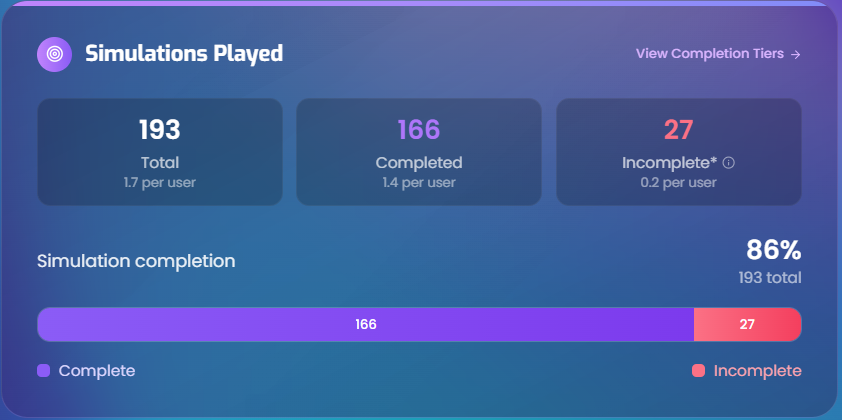
The Simulations Played panel summarizes how many simulations users have run and how many they completed. It sits in the lower-left of the page, side by side with the Satisfaction Metrics panel.
What data is shown
This panel answers: how many simulations have learners run, and how many did they finish?
A "simulation" is a single practice session where a learner enters an interactive role-play scenario. Each time a user launches a scenario counts as one simulation attempt.
- Total - Every simulation that was launched during the selected period, regardless of whether it was finished.
- Completed - Simulations where the user went through the full session and reached the mentor feedback stage. This means the learner completed the practice and reviewed their performance.
- Incomplete - Simulations that were launched but never reached the feedback stage. This can happen when a user exits early, accidentally launches a simulation, or doesn't review their feedback.
- Per-user averages - Each count is also shown divided by the number of active users, showing how many simulations the average learner is running.
- Completion rate - The percentage of all simulations that were completed (completed ÷ total).
All counts are scoped to the selected time period, user groups, and courses.
Summary boxes
At the top of the panel, three boxes show the headline numbers:
| Box | Color | What it shows |
|---|---|---|
| Total | White | The total number of simulations launched, with a per-user average |
| Completed | Purple | Simulations where the user reached the feedback stage, with a per-user average |
| Incomplete | Rose/Red | Simulations that were started but didn't reach feedback, with a per-user average |
What counts as "completed" vs "incomplete" - the exact stages
Every simulation goes through a series of stages. The system uses these stages to determine whether a simulation was completed:
| Stage | What happens |
|---|---|
| 1. Initial state | The simulation record is created, but the practice session hasn't started yet. |
| 2. Conversation started | The learner has entered the simulation and is actively practicing with the conversation partner. |
| 3. Feedback started | The practice conversation has ended and the mentor has begun delivering feedback. |
| 4. Interactive mentor started | The feedback review is done and the learner is in an interactive discussion with the mentor. |
| 5. Session completed | The entire session - practice, feedback, and mentor discussion - is finished. |
A simulation is counted as Completed if it reached stage 3 (Feedback started) or beyond. This means the learner finished the practice conversation and at least began receiving feedback from the mentor.
A simulation is counted as Incomplete if it never reached stage 3. This includes:
- Accidental launches (the user opened a simulation but left immediately).
- Sessions where the user started practicing but exited before the conversation partner finished.
- Sessions where the practice ended but the feedback stage was never reached.
A high incomplete count isn't necessarily a problem. It often includes accidental launches, brief exploration of a scenario, or sessions where the user came back later to complete the same scenario properly.
Completion rate
Below the summary boxes, the overall simulation completion rate is displayed as a prominent percentage. Next to it, the panel shows the total number of simulations for context.
Stacked completion bar
A horizontal stacked bar provides a visual representation of the split between completed and incomplete simulations:
- Violet portion - Completed simulations.
- Rose portion - Incomplete simulations.
If either portion is large enough, the actual count is displayed inside the bar.
Below the bar, a simple legend confirms which color represents which category.
Navigating to detailed charts
At the top-right of the panel, a View Completion Tiers link scrolls down to the Scenario Completion Tiers chart, where completion data is broken down by individual scenario.