Accessing Usage Analytics
Usage Analytics is a standalone application, separate from the Admin Portal. It has its own URL and its own navigation, but shares the portal login so a second sign-in is not required.
How to navigate there
- In the Menta portal, click the avatar/initials icon in the top-right corner of the navigation bar.
- In the dropdown that opens, click the Usage Analytics button.
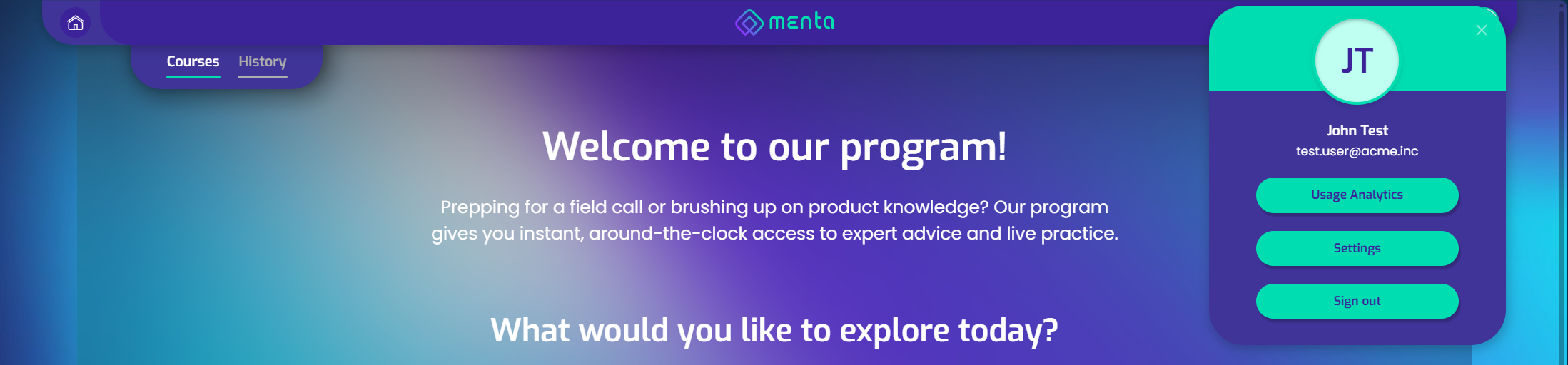
Usage Analytics opens in its own view, with a different layout and navigation bar from the Admin Portal. The page can be bookmarked for quick access later.
The Usage Analytics button only appears for users with the Super Admin or Company Admin role.
Signing in
Usage Analytics shares the Menta portal session. If an administrator is already signed into the portal, it recognizes the session automatically.
If the session has expired or the administrator has not signed in yet, they are redirected to the portal login page. After sign-in, they are sent back to Usage Analytics.
Role requirements
Only users with one of these roles can access Usage Analytics:
| Role | Access |
|---|---|
| Super Admin | Full access |
| Company Admin | Full access |
| User | No access |
If the role does not have access, an Access Denied screen is shown with a button to go back to the portal.
The navigation bar
At the top of the page, the navigation bar shows the Menta logo and the signed-in user's avatar. Clicking the avatar opens a dropdown with the user's name, email, a Settings button (which navigates back to the portal profile page), and a Sign out action.
If something isn't working
- Redirected to login repeatedly - Try clearing browser cookies and signing in again.
- "Access Denied" when access is expected - Contact the Menta point of contact to verify that the account has an administrator role.
- Empty data - Make sure the selected time period and filters include data. See Filters and Controls.