Viewing user details
Clicking a row in the user list opens the user detail view. This is the single place where you can see everything about one user and adjust their setup.
What's shown
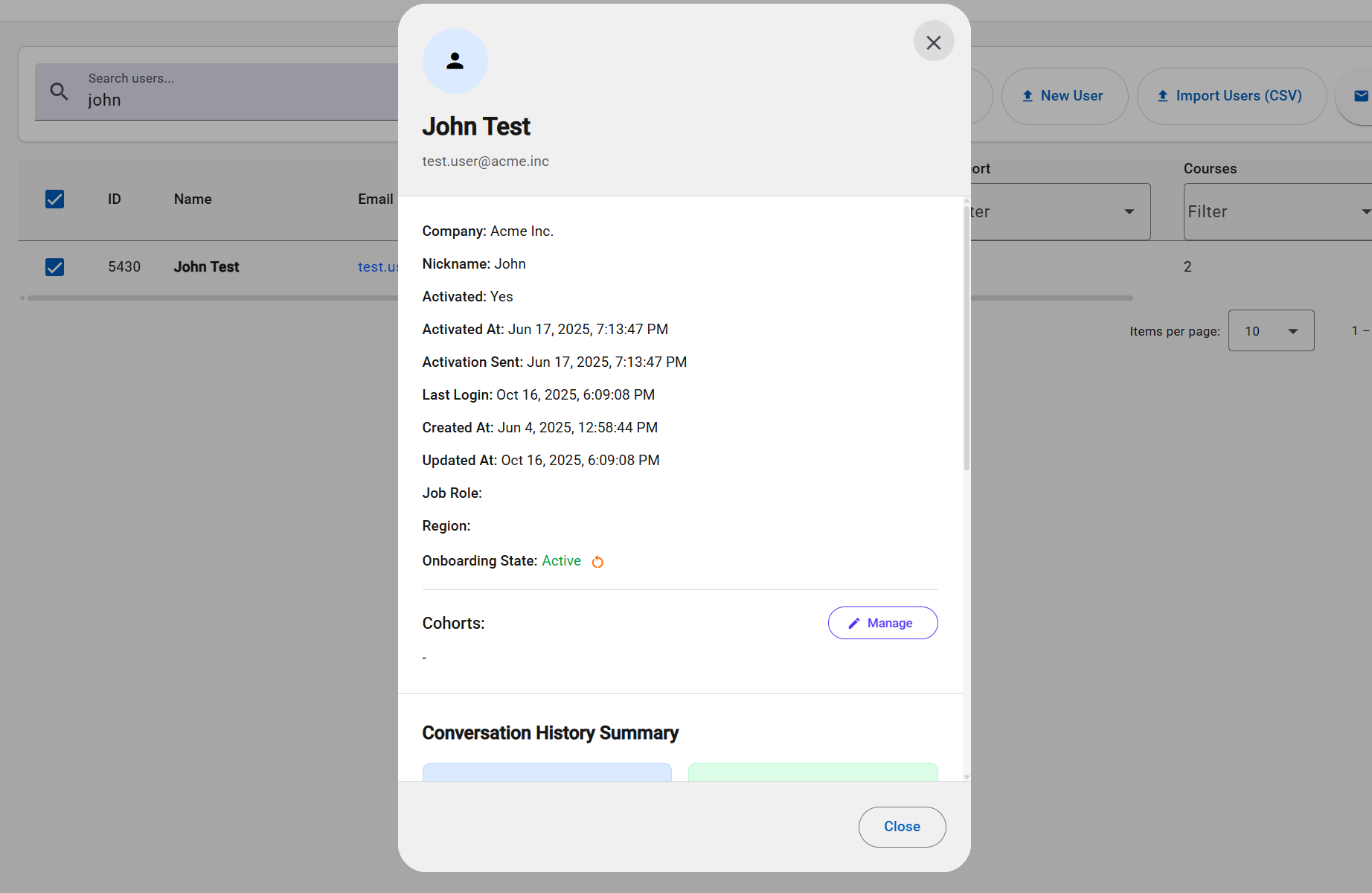
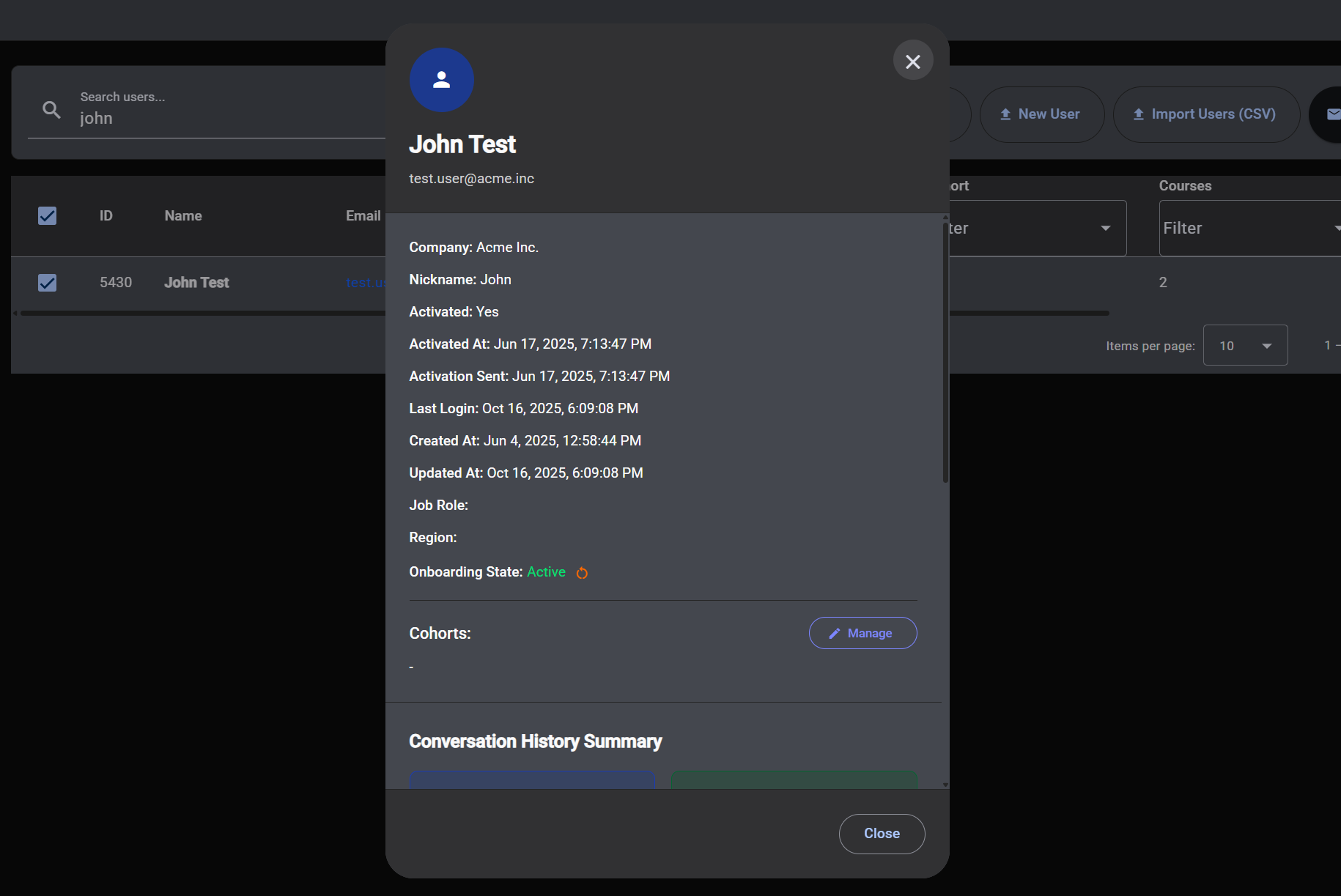
The detail view is divided into a few clear areas:
- Profile - the user's name, email, nickname, company, activation status, and other identifying information.
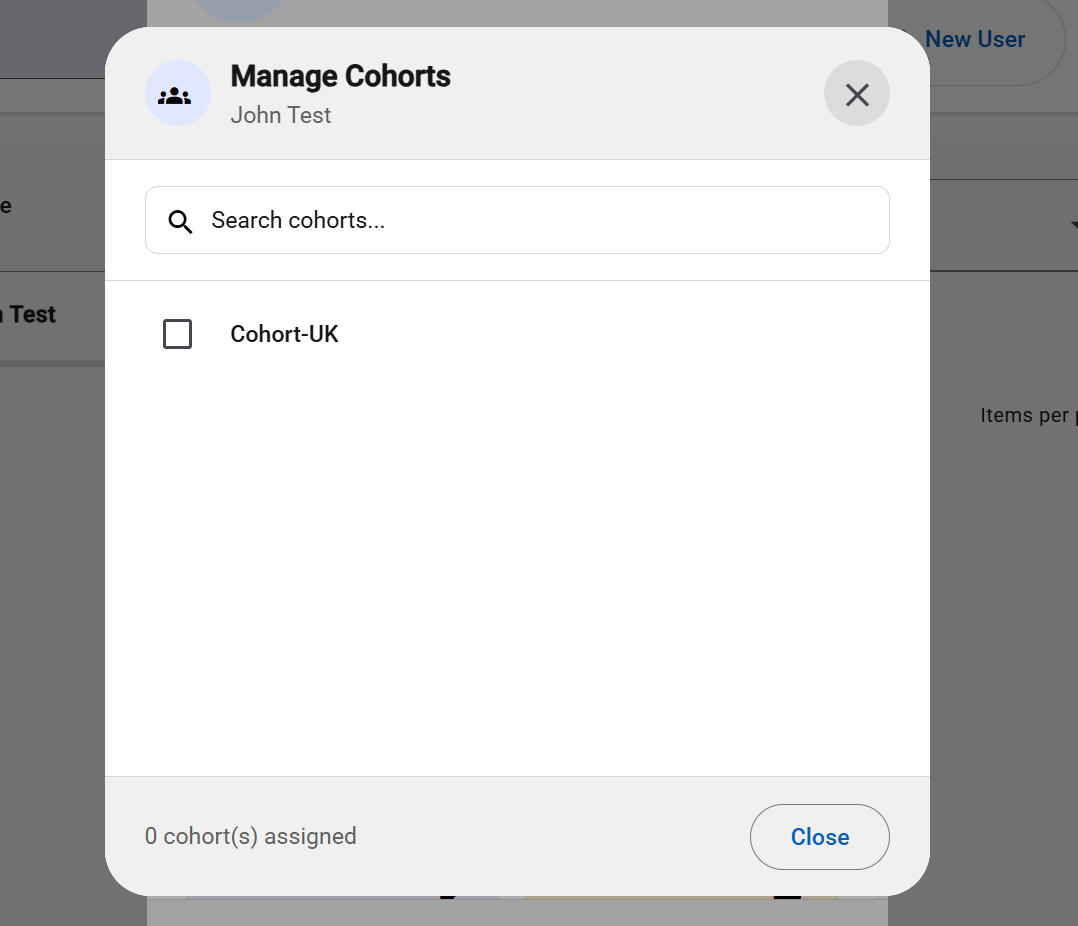
- Cohorts - the cohorts the user currently belongs to. You can open the cohort manager from here to add or remove the user from any cohort.
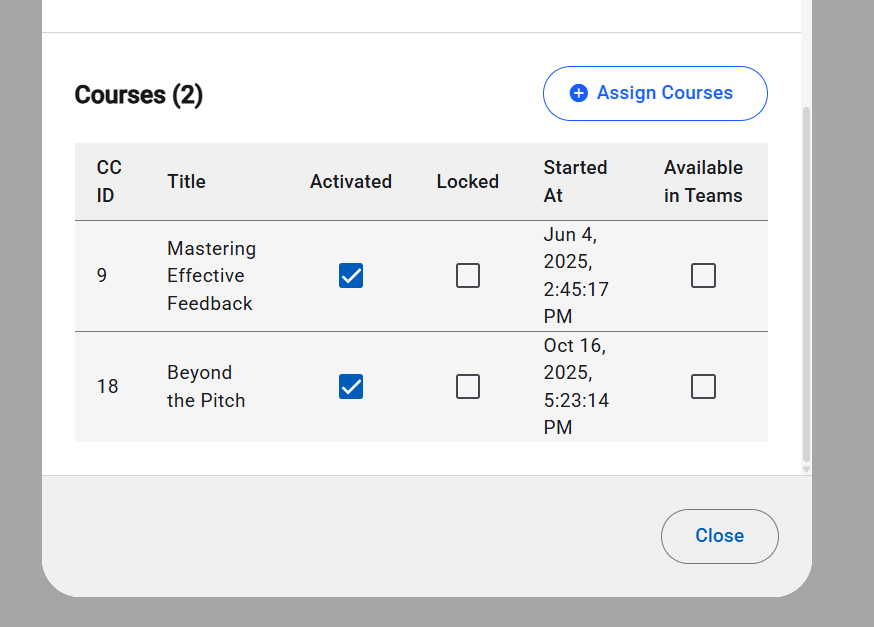
- Assigned courses - every course the user has been assigned, along with per‑course flags you can toggle (see below).
- Activity summary - a high‑level view of the user's practice and conversation history, when available. This includes totals such as time spent practicing, time spent on feedback, and number of completed sessions.
Managing assigned courses
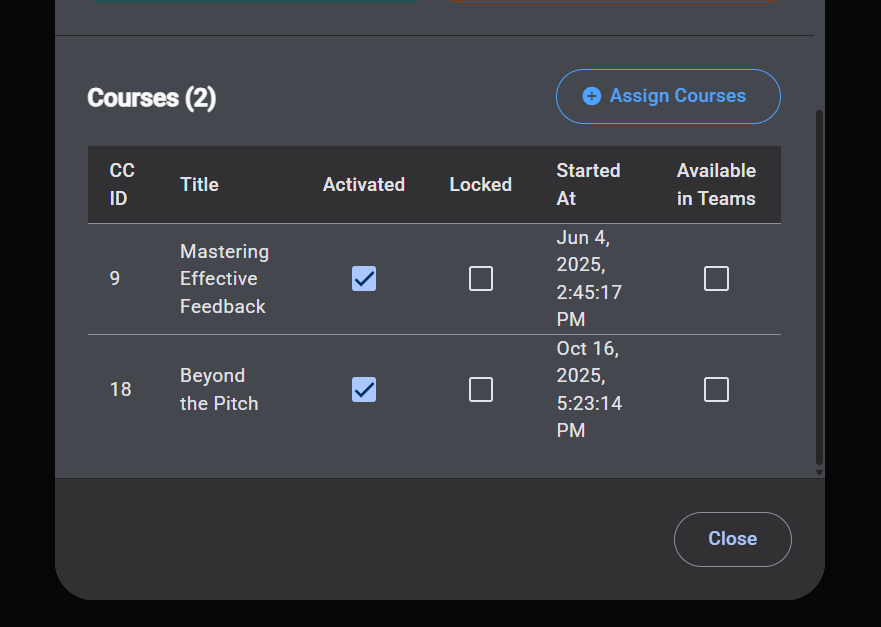
The courses table lets you control how each assigned course behaves for that user, without leaving the dialog:
- Activated - controls whether the course is visible to the user. When activated, the course appears in their course list. When deactivated, it's hidden from the UI entirely, as if it wasn't assigned.
- Locked - the course still shows up in the user's course list, but it's displayed in a disabled state. The user can see that it exists but can't open or start it. Useful when you want to make a course visible (for example, to tease upcoming content) without granting access yet.
- Available in Teams - controls whether this course is used when the user practices through the Microsoft Teams chatbot. See the notes below for how Menta decides which course to use in Teams.
Toggle any of these and a Save changes button becomes available. Saving applies all your changes at once. If you change your mind, Reset discards anything you haven't saved yet.
How "Available in Teams" works
The Microsoft Teams chatbot can currently practice one course at a time per user. When a user starts a Teams session, Menta picks which of their assigned courses to use, based on the Available in Teams flag:
-
One course marked Available in Teams - that course is used. This is the recommended setup.
-
Multiple courses marked Available in Teams - Menta uses the most recently assigned of those courses. The others are ignored in Teams.
-
No courses marked Available in Teams - Menta falls back to the user's most recently assigned course (excluding any that are locked). The user will still be able to practice in Teams, but on a course you didn't explicitly choose for them.
info"Most recently assigned" refers to the date the course was assigned to the user - not the date the course itself was created. So if you assign an older course to a user today, that assignment is what counts as most recent.
-
Locked courses are always skipped in Teams, regardless of the Available in Teams flag.
For predictable behavior, mark exactly one course as Available in Teams for each user who uses the Teams chatbot.
Support for multiple simultaneous Teams courses per user is planned for a future release. Until then, only one course at a time can be active in Teams.
Managing the user's cohorts
The Manage cohorts button opens a dedicated dialog where you can search across all company cohorts and add or remove this user from any of them with a single click. This is also covered from the cohort side in Adding users to a cohort.
Assigning courses
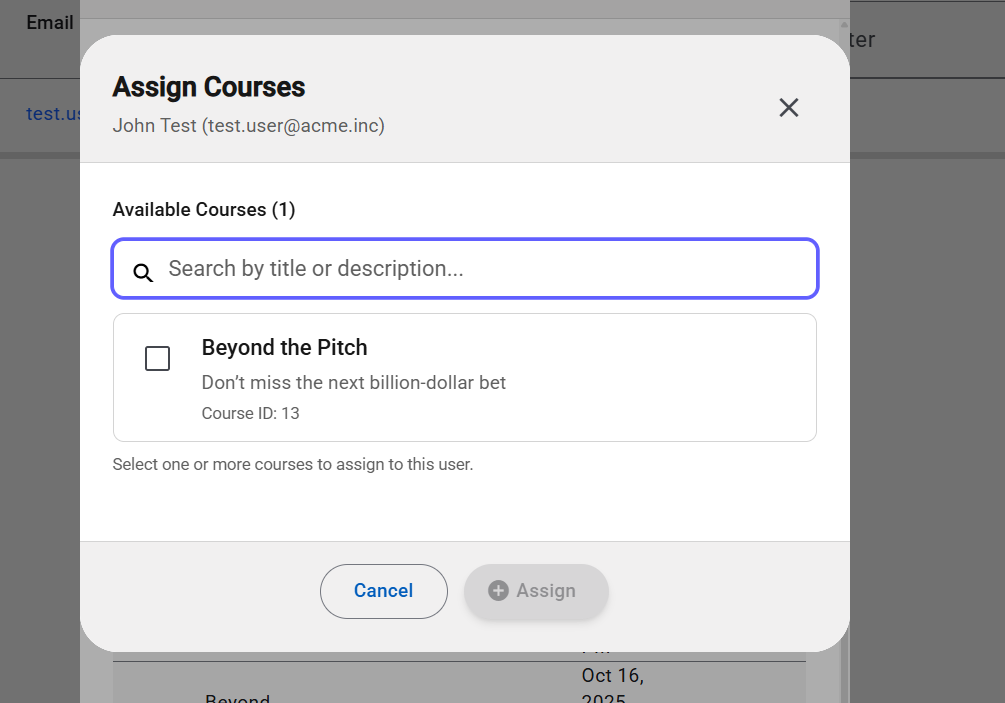
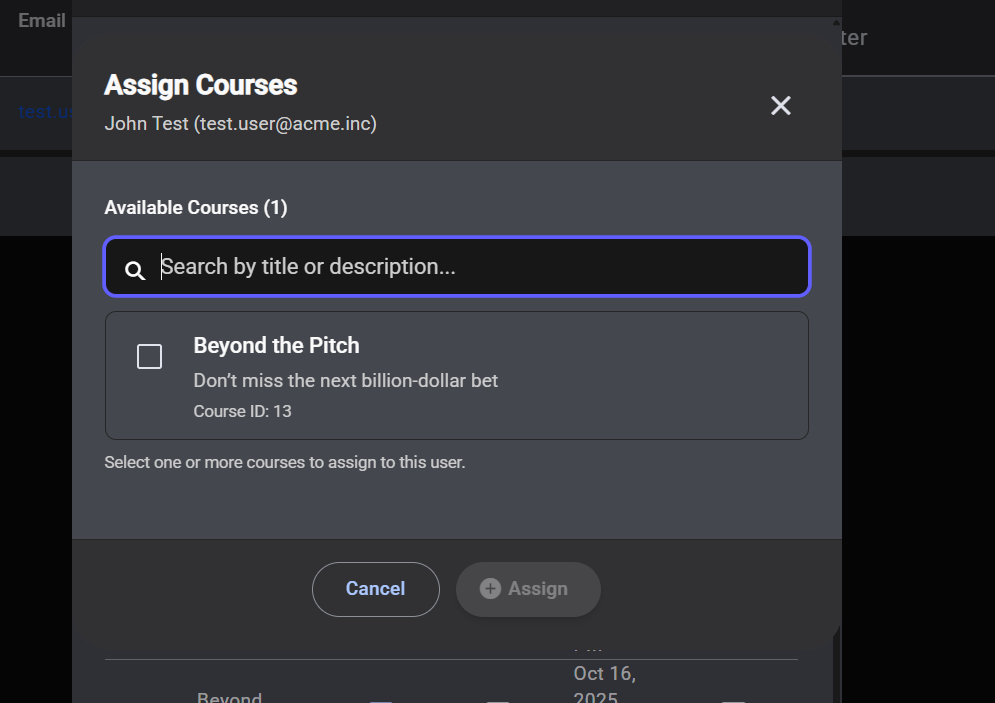
The Assign courses button opens the course assignment dialog, where you can pick additional courses to give this user access to.
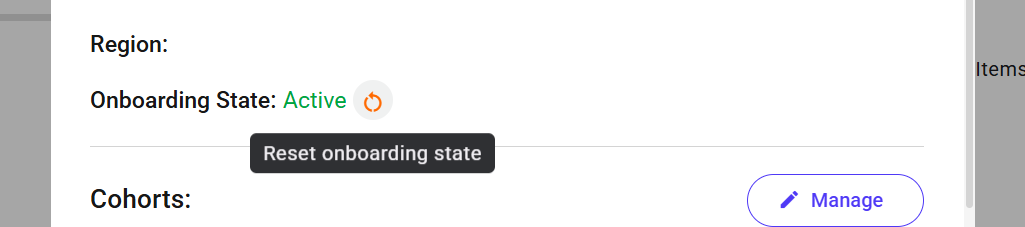
Resetting onboarding
If a user is stuck partway through onboarding - for example, after a configuration change - the Reset onboarding state action clears their progress so they go through the flow again from the start the next time they sign in. This action is only visible when the user actually has an onboarding state to reset.