Browsing and searching users
The user list is your starting point for everything to do with people in your company. It shows every user you have access to, along with the most relevant information about each one - their name, email, company, cohorts, assigned courses, activity, and more.
Finding a specific user
There are three ways to narrow the list down, and you can combine them freely.
Search
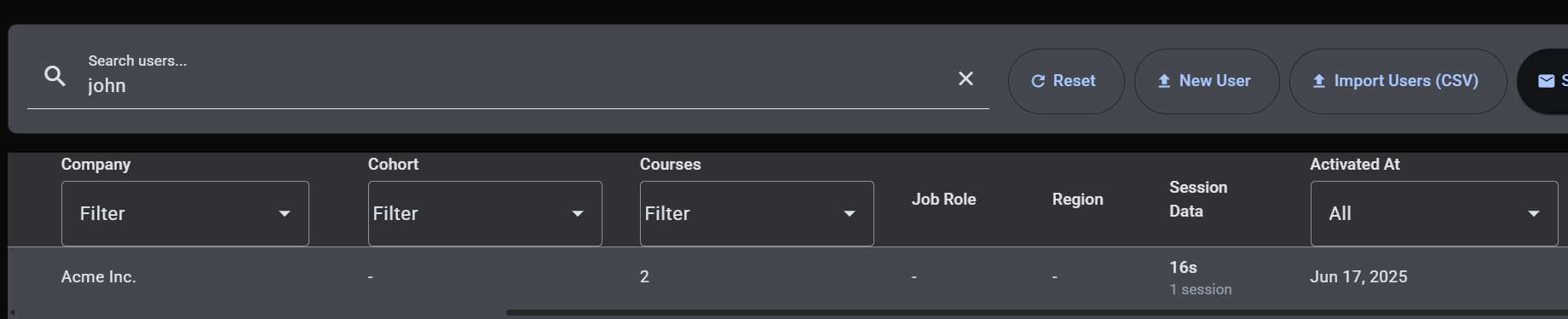
The search box at the top of the user list matches against common fields such as name, email, and nickname. Start typing and the list updates as you go.
To clear the search, empty the search box.


Filters
Filters let you focus on a slice of users that share something in common. The available filters include:
- Company - show users from one or more specific companies.
- Cohort - show only members of selected cohorts. The cohort picker has its own search box for when the list is long.
- Course - show users who are assigned to specific courses.
- Activation status - distinguish between users who have already activated their account and those who haven't.
- Last login - separate active users from those who haven't signed in recently.
You can apply multiple filters at the same time. There's also a Reset filters action to clear everything in one click.

Sorting
Click any sortable column header to sort the list by that column. Click again to reverse the direction. Sorting works well together with search and filters - for example, you might filter to a specific cohort and then sort by last login to see who's been most active.
Reading the list
Each row in the user list shows a snapshot of one user. The most useful columns to be aware of are:
- Name and email - who the user is. You can click the small copy icon next to the email to copy it to your clipboard.
- Company - the company the user belongs to.
- Cohort - the cohorts the user is currently a member of.
- Courses - how many courses they have been assigned.
- Job role / Region - optional contextual fields captured when the user was created.
- Activated at - when the user activated their account. An empty value means they haven't activated yet.
- Last login - when they last signed in.
Selecting users for bulk actions
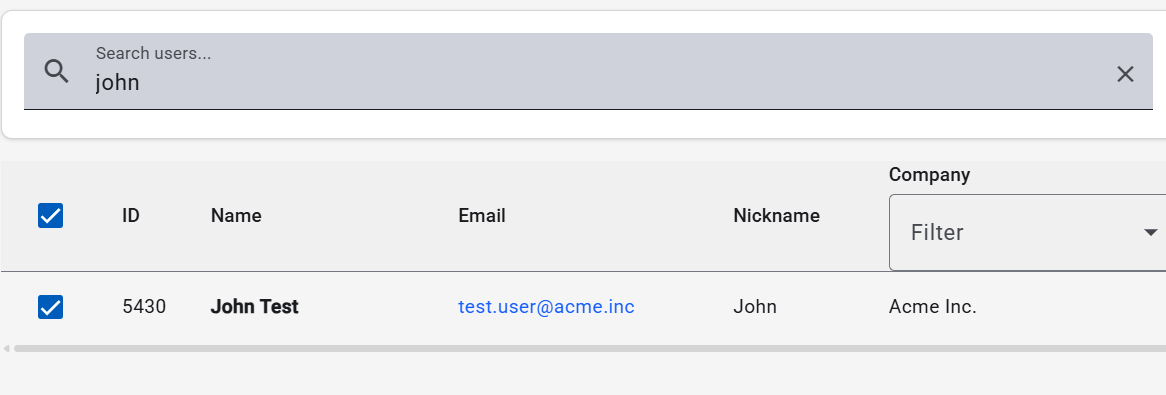
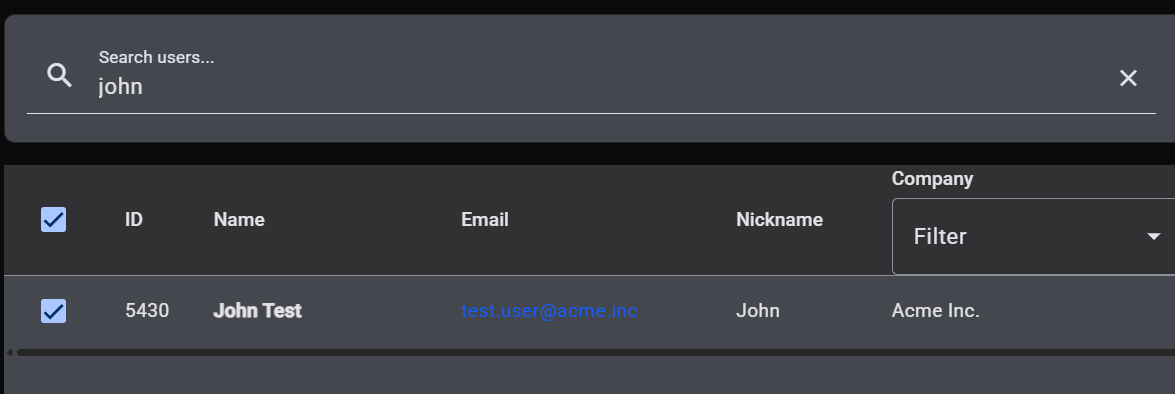
Each row has a checkbox at the start. Use it to select one or more users, then choose an action from the actions bar at the top of the list. Bulk actions currently include sending activation invitations - see Sending invitations.
The checkbox in the header selects every user on the current page. Selections persist as you navigate, so you can build up a larger selection across pages before acting on it.
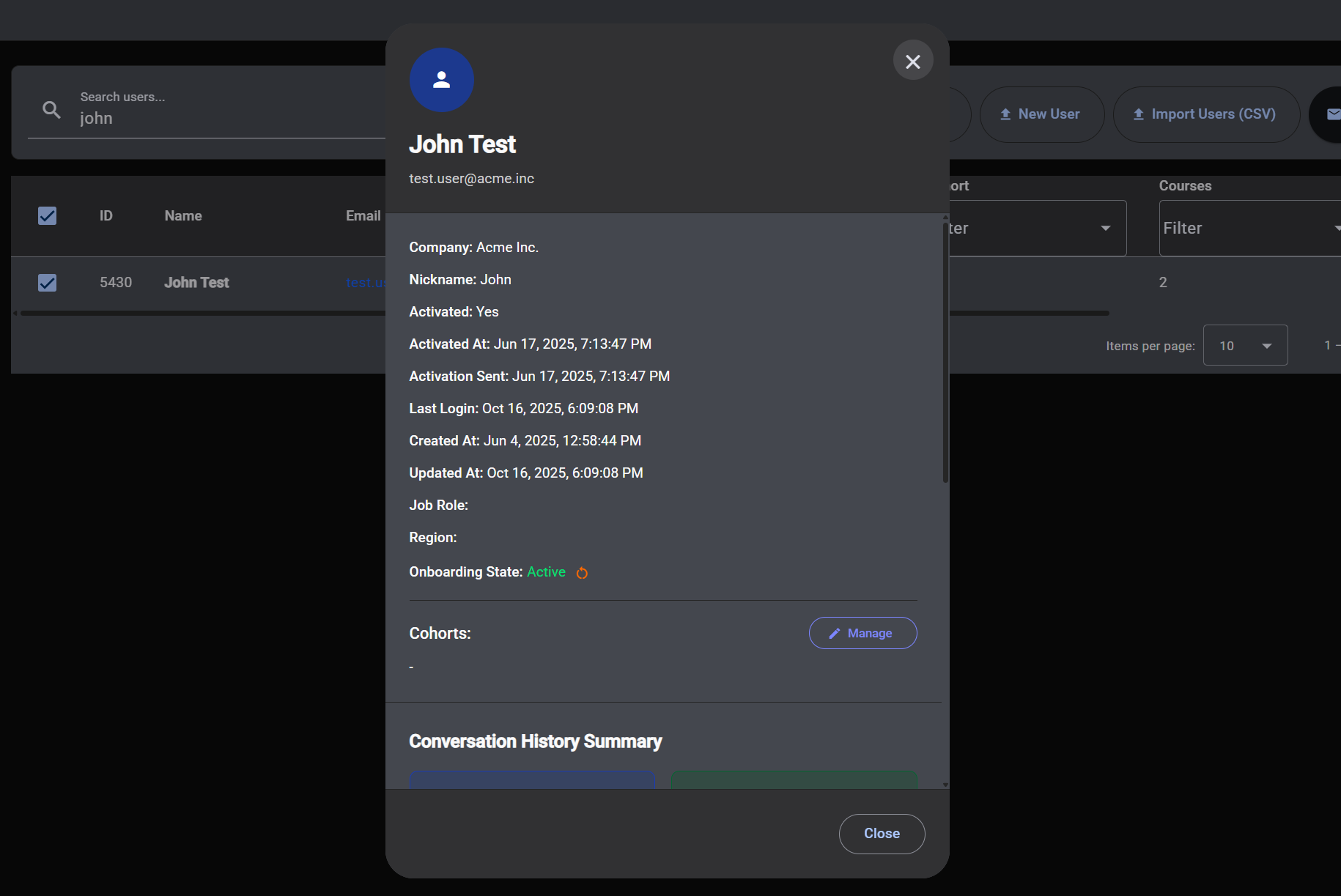
Opening a user
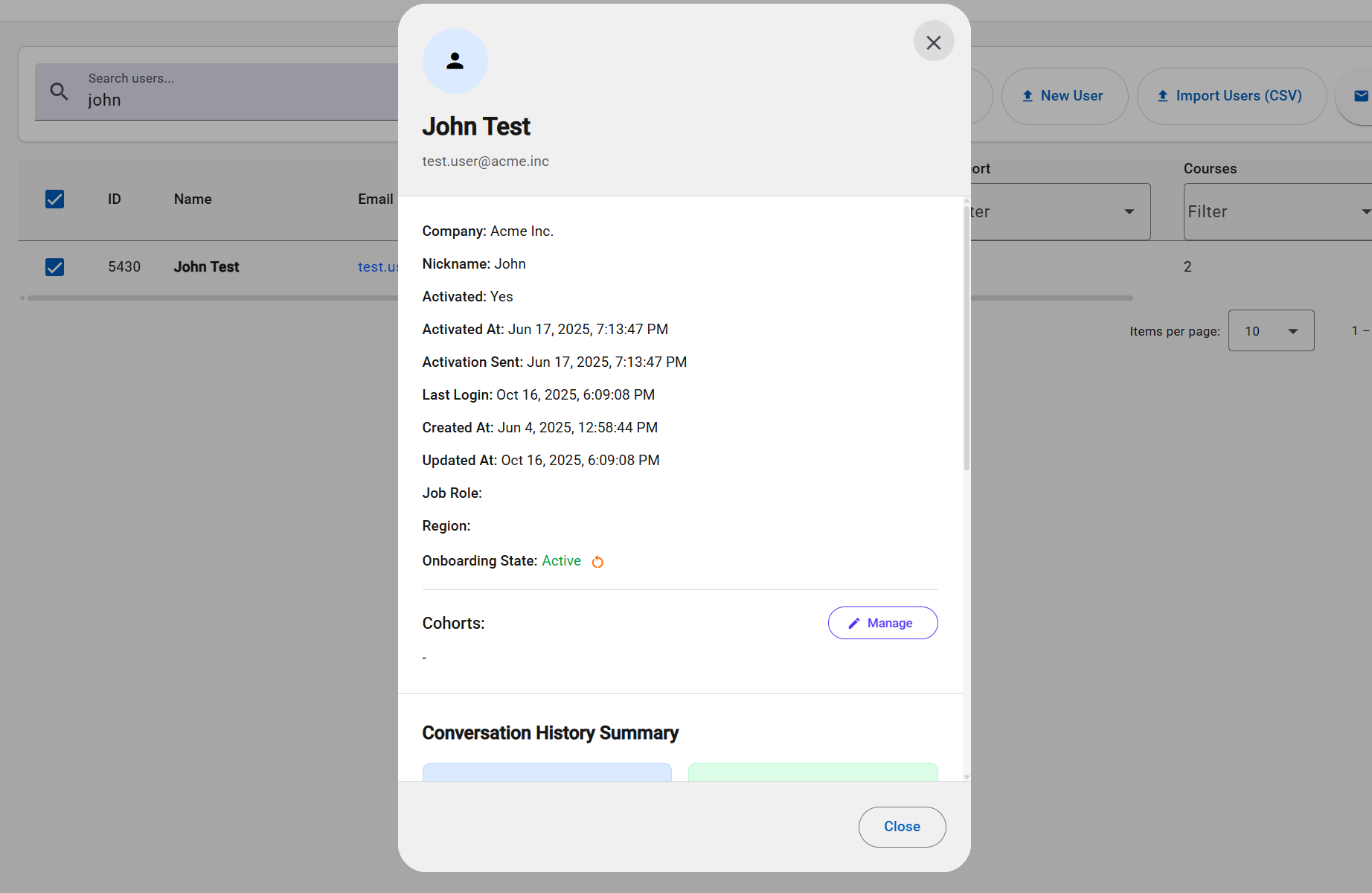
Clicking a row opens a detailed view of that user. That's covered in the next page, Viewing user details.
Sharing a filtered view
The current search, filters, sort order, and page are all reflected in the URL. That means you can bookmark a specific view, or share the URL with a colleague and they'll see exactly the same list when they open it (subject to their own permissions).