Testing
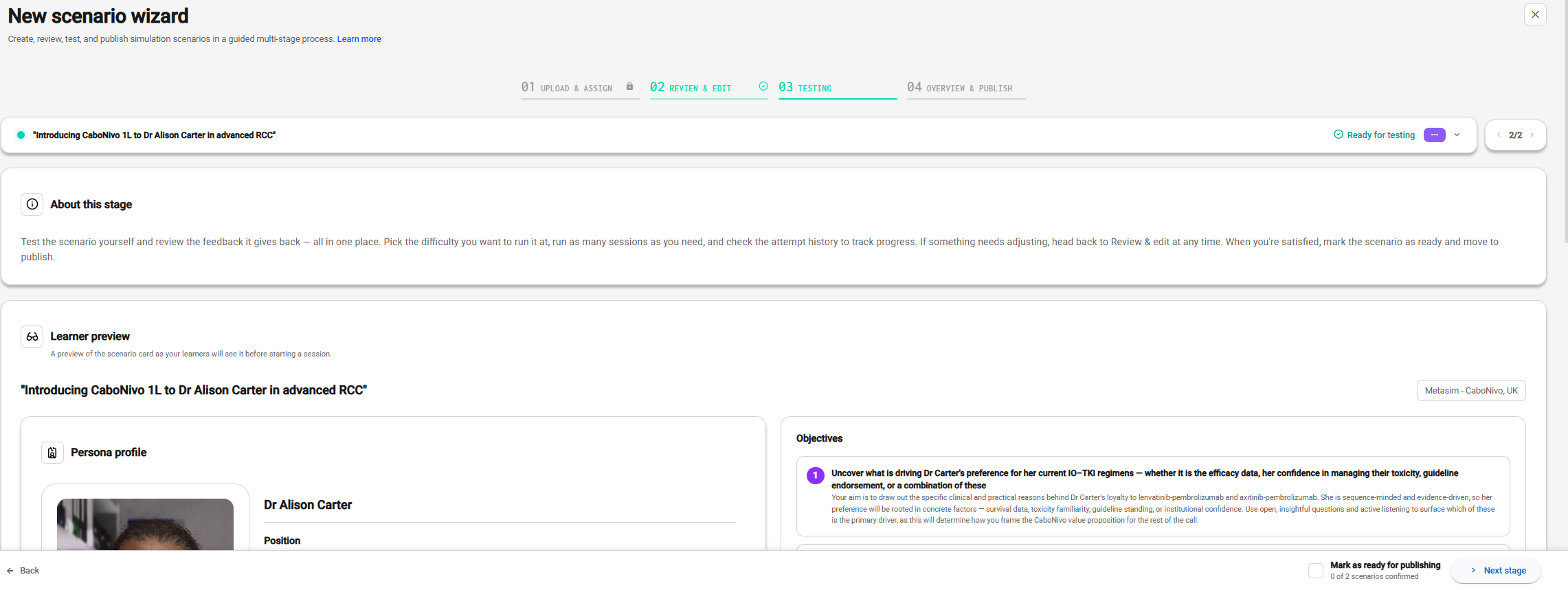
Stage 3 of the wizard, Testing, is where a scenario is tried out before learners see it - by you, and by the colleagues you invite. A scenario has to be marked Ready for testing in stage 2 before it can be tested here.
Running the scenario yourself
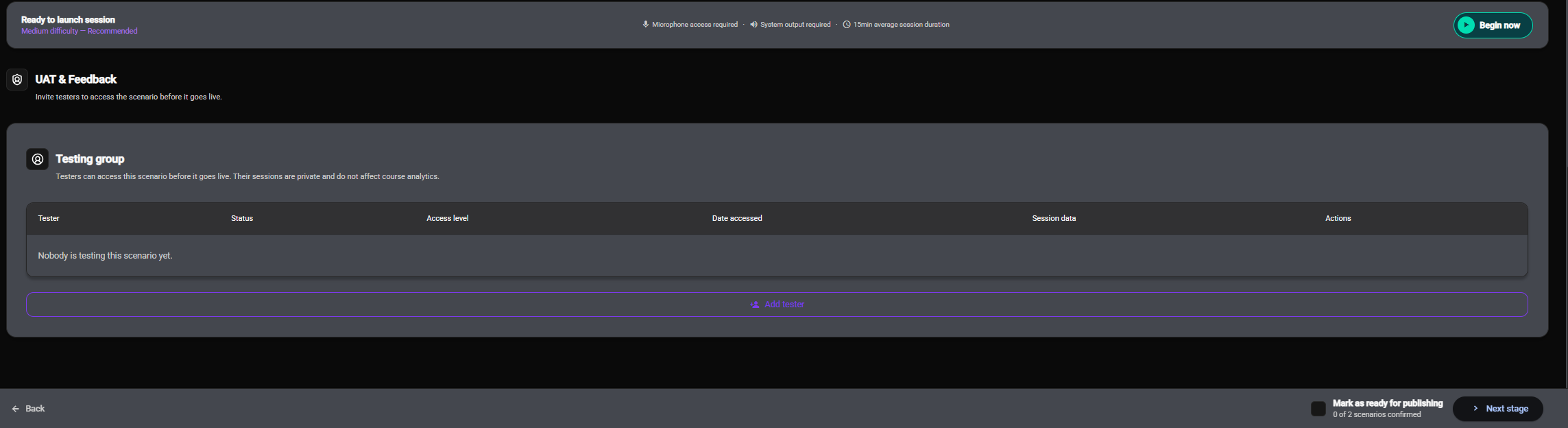
The Learner preview shows the scenario card exactly as learners will see it before they start. To try the scenario:
- Under Difficulty Selection, pick the level you want to run it at. The recommended level is suggested.
- Click Begin now. The scenario opens in the Menta portal in a new tab, so you can run the session as a learner would.
Run as many sessions as you need. Each one is counted, and the count is shown on the publish stage. Test sessions are private and are not included in the course's analytics.
Inviting testers
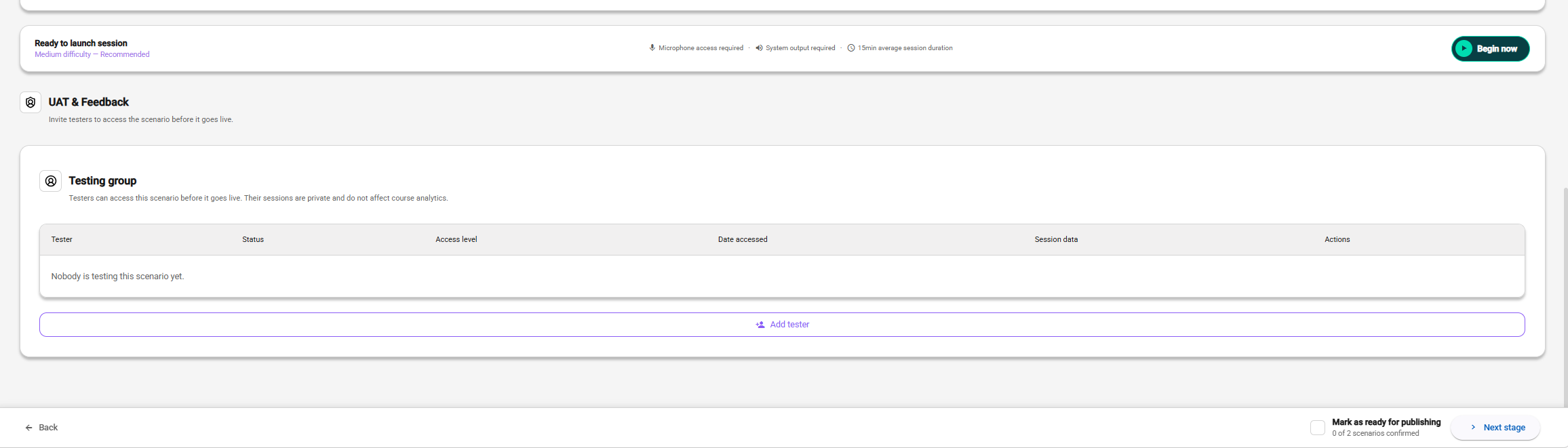
Under UAT & Feedback, the Testing group lists everyone who has been given the scenario to test. Only the admin who created the scenario can change its testing group.
To add a tester:
- Click Add tester.
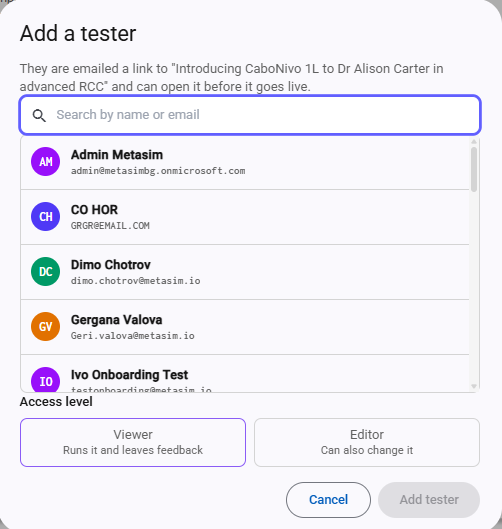
- Search for the person by name or email. Only people in your company are offered. Someone already in the group shows Invite sent until they open the scenario, and Already testing after that.
- Choose their access level:
- Viewer - Can run the scenario and test it in the portal.
- Editor - Can also change the scenario in the Admin Portal. Only admins can be editors.
- Confirm. The tester is emailed an invitation straight away.
What testers receive and see
The invitation email links straight to the scenario in the Menta portal. An editor's email also links to the scenario in the Admin Portal.
Testers don't need to be enrolled in the course. Through the invitation they reach the course's testing page, and there they see only the scenarios they were given - nothing else of the course opens for them. In the same way, a company admin sees on the testing page only the drafts they created or were given to test.
Managing the testing group
For each tester, the group shows whether they've opened the scenario yet (Invited or Accessed), when they first opened it, and their session activity. You can:
- Change the access level - Click their Viewer or Editor tag and pick the other level. They're emailed the invitation for the new level.
- Resend the invitation - Use the envelope action at the end of their row. The invitation is emailed again, for the access level they hold now.
- Remove the tester - Use the bin action at the end of their row. The scenario is taken away from them and any link they were sent stops working, but their past sessions are kept.
Marking a scenario ready for publishing
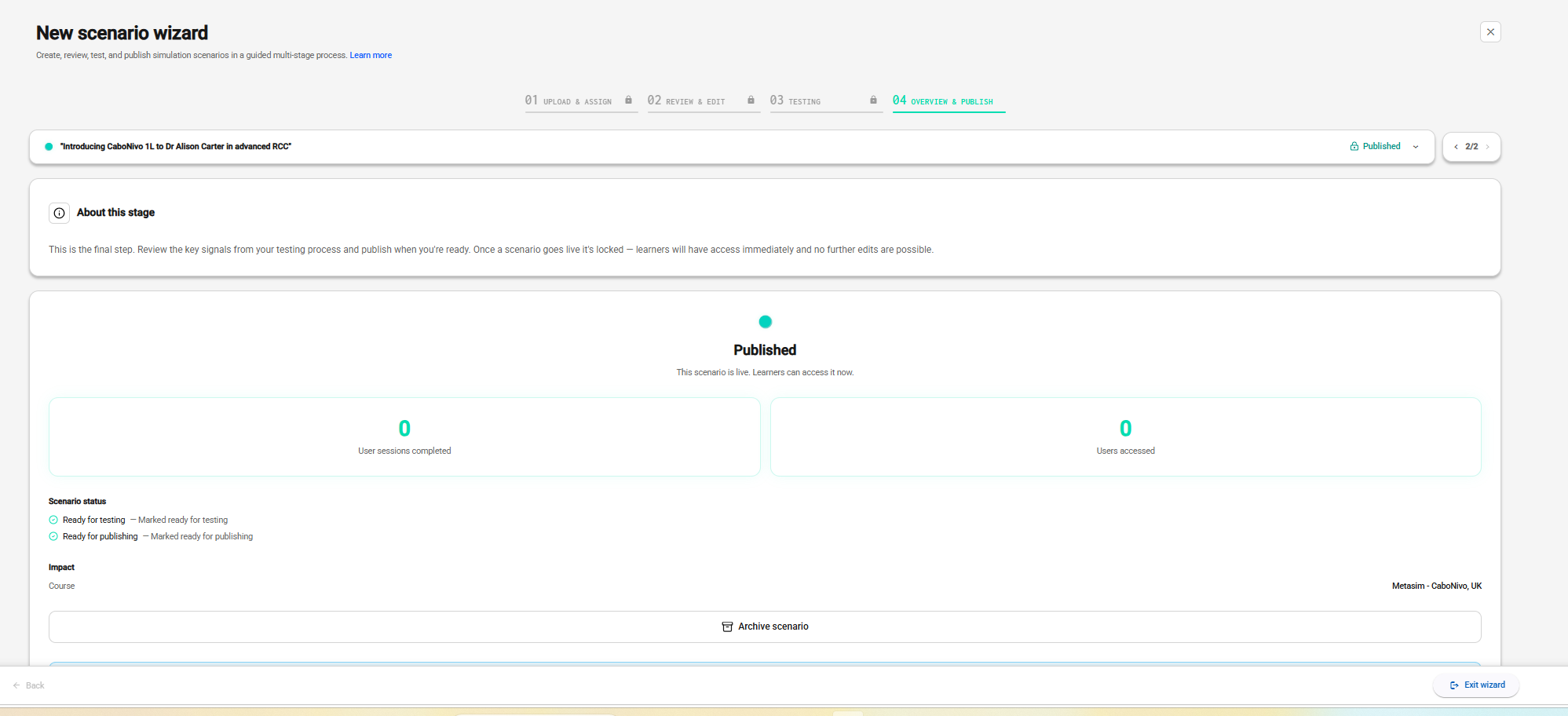
When testing is done, tick Ready for publishing, then click Next stage to go to Publishing.