Reviewing and editing
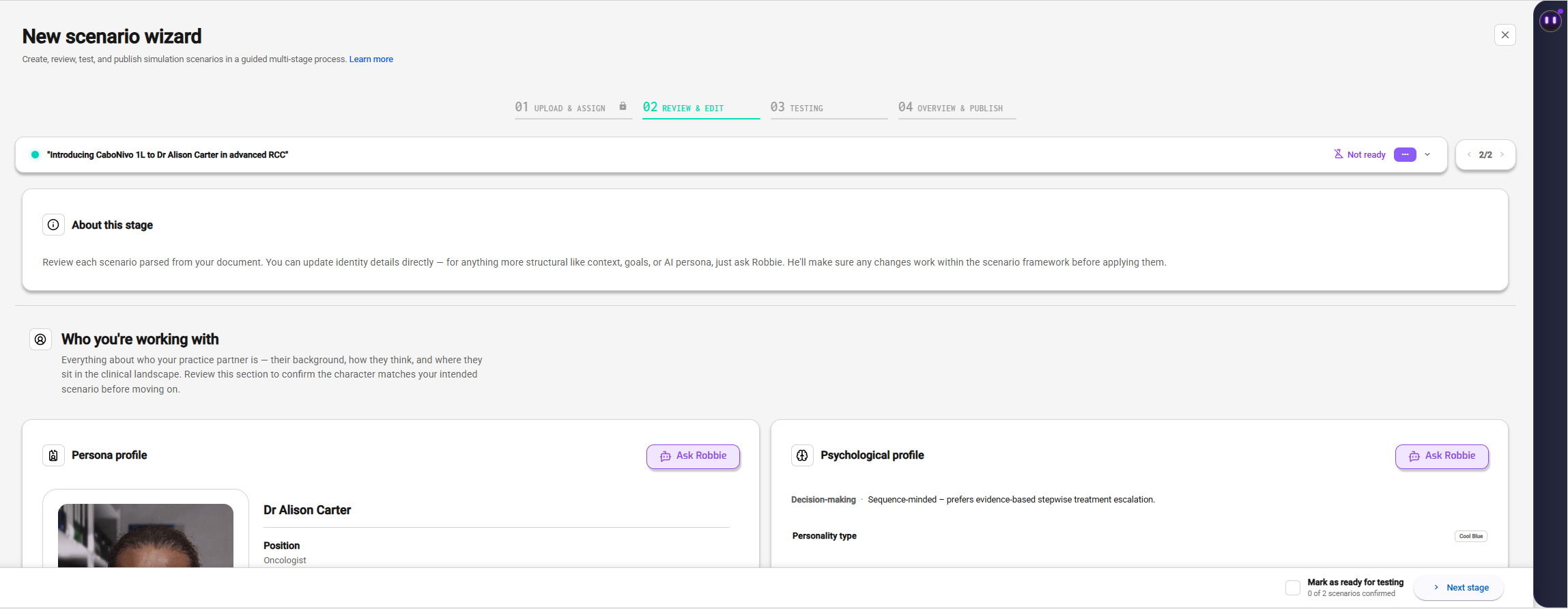
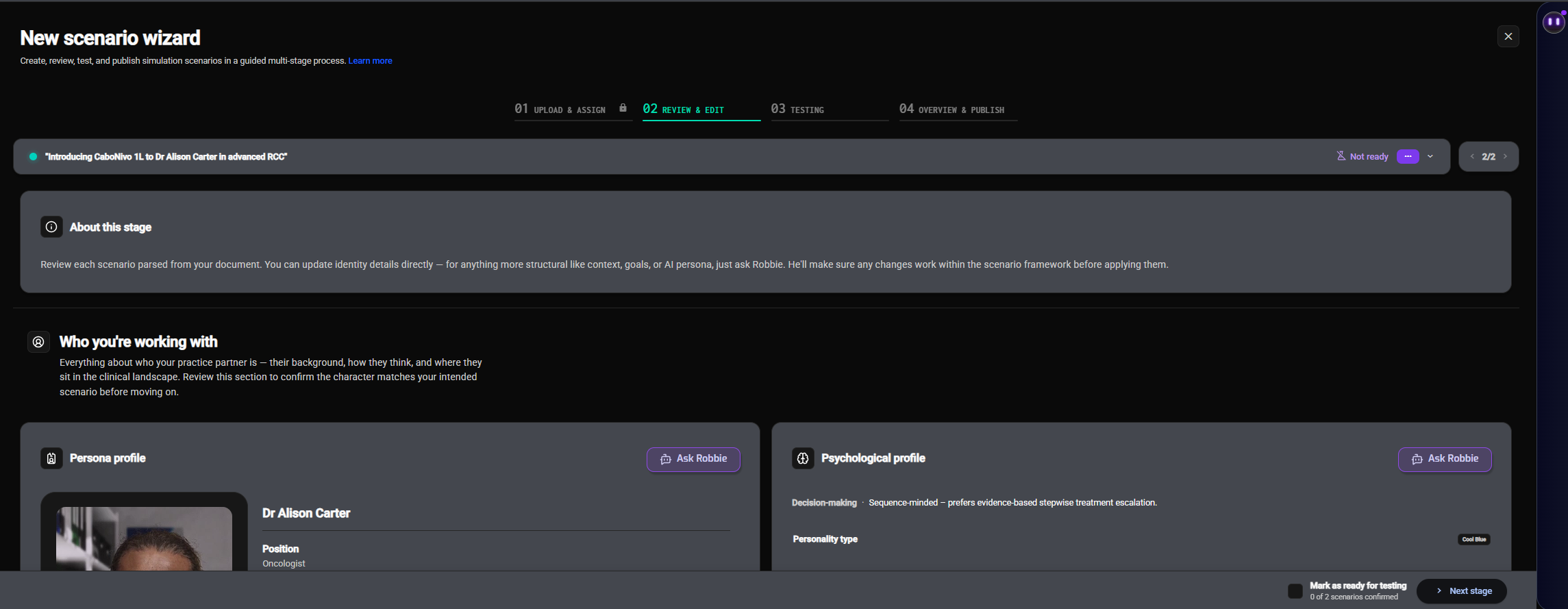
Stage 2 of the wizard, Review & edit, shows every generated scenario in full, so you can check it before anyone tests it. When a sheet produced several scenarios, use the scenario picker at the top, or the arrows next to it, to move between them.
What you see
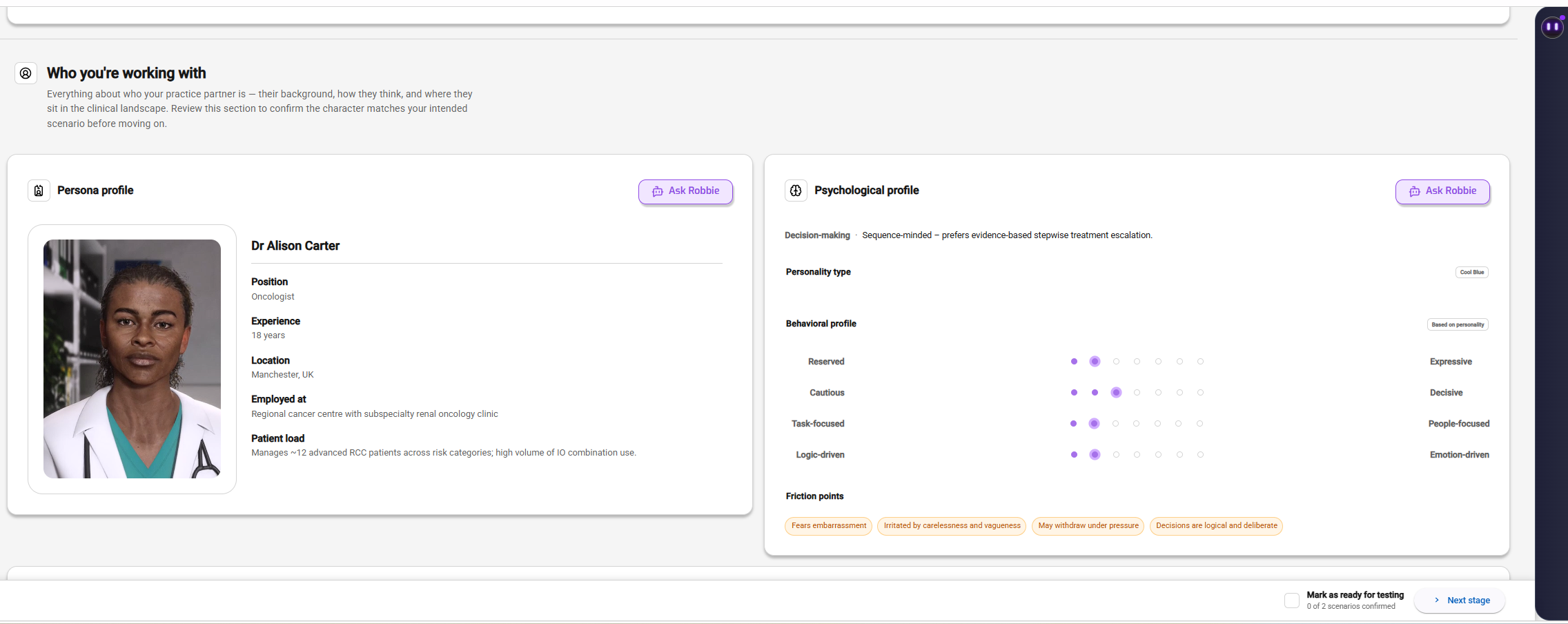
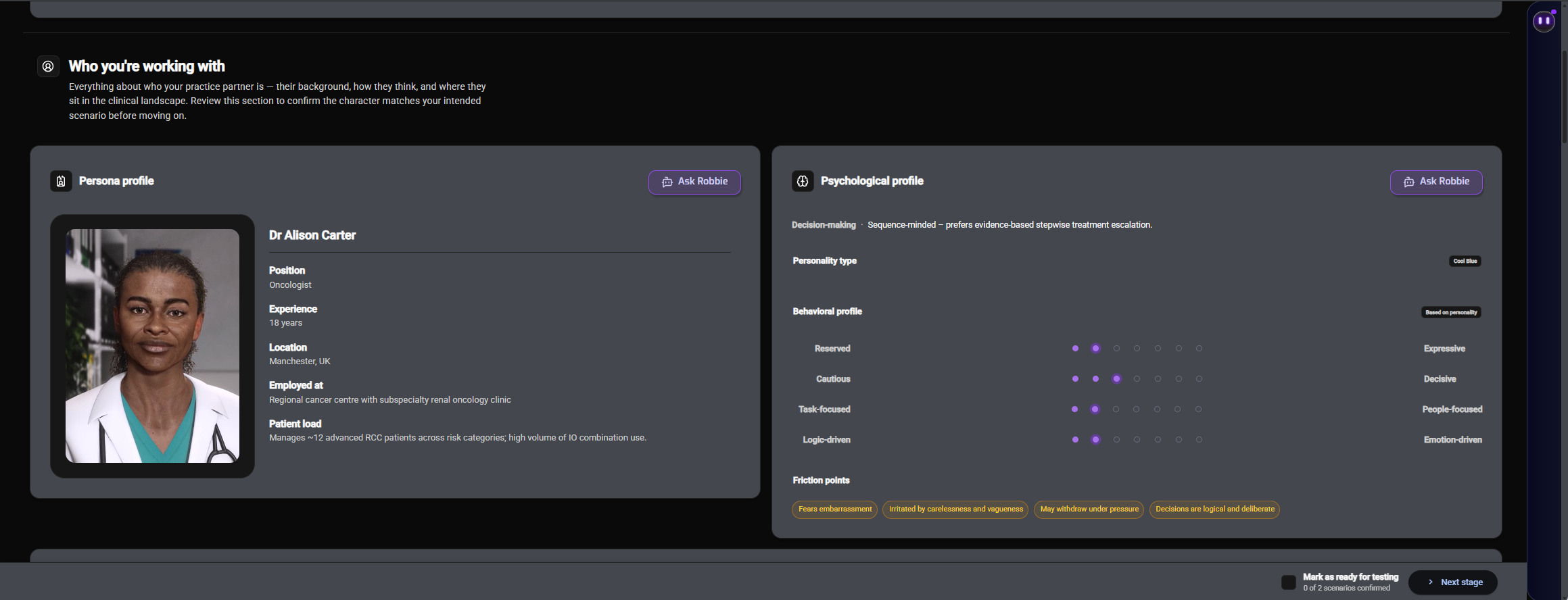
Each scenario is laid out in the order a learner meets it:
- Who you're working with - The practice partner: their persona and psychological profile, personality type and behavioural profile, and the friction points they bring to the conversation.
- Clinical context - Where the practice partner sits in their clinical world: their position on the adoption ladder, their treatment history, and the products and studies around them.
- What to achieve - The setting, the scenario context the learner reads, the context bullets used during the session, the objectives and success criteria, and the difficulty scale - how each difficulty level changes the practice partner's behaviour.
Anything your sheet didn't cover is marked as not set by the sheet, so you can tell what Menta wrote from what you gave it.
Changing a scenario
Simple identity details can be edited directly on the page. For anything more structural - the context, the objectives, the persona's behaviour - ask Robbie, the authoring assistant, in the panel on the right. Describe the change in your own words; Robbie applies it across every part of the scenario it affects, so the scenario stays consistent.
Changes are saved as you make them. The conversation with Robbie is saved with the scenario too, so you or a colleague can pick it up later where it was left.
Wait for Robbie to finish his reply before you leave the page - leaving in the middle of a reply loses it, and the wizard warns you if you try.
Marking a scenario ready for testing
When a scenario reads the way you want, tick Ready for testing. A scenario has to be marked ready before it can be tested in stage 3. Move to the next scenario and repeat, then click Next stage.
When someone else has the scenario open
Only one admin can edit a scenario at a time. If a colleague already has it open, you'll see who, and the page opens in read-only mode: you can read everything, but nothing can be changed until they leave it.
If you stop using the page for ten minutes while you have a scenario open, it's closed for you: you're taken back to the Scenarios list with a message, and the scenario becomes free for others. Your changes up to that point are kept.