Publishing
Stage 4 of the wizard, Overview & publish, is the last step before a scenario goes live. It shows whether the scenario has been through the earlier stages, and once it's published, how learners are using it.
Checking the scenario is ready
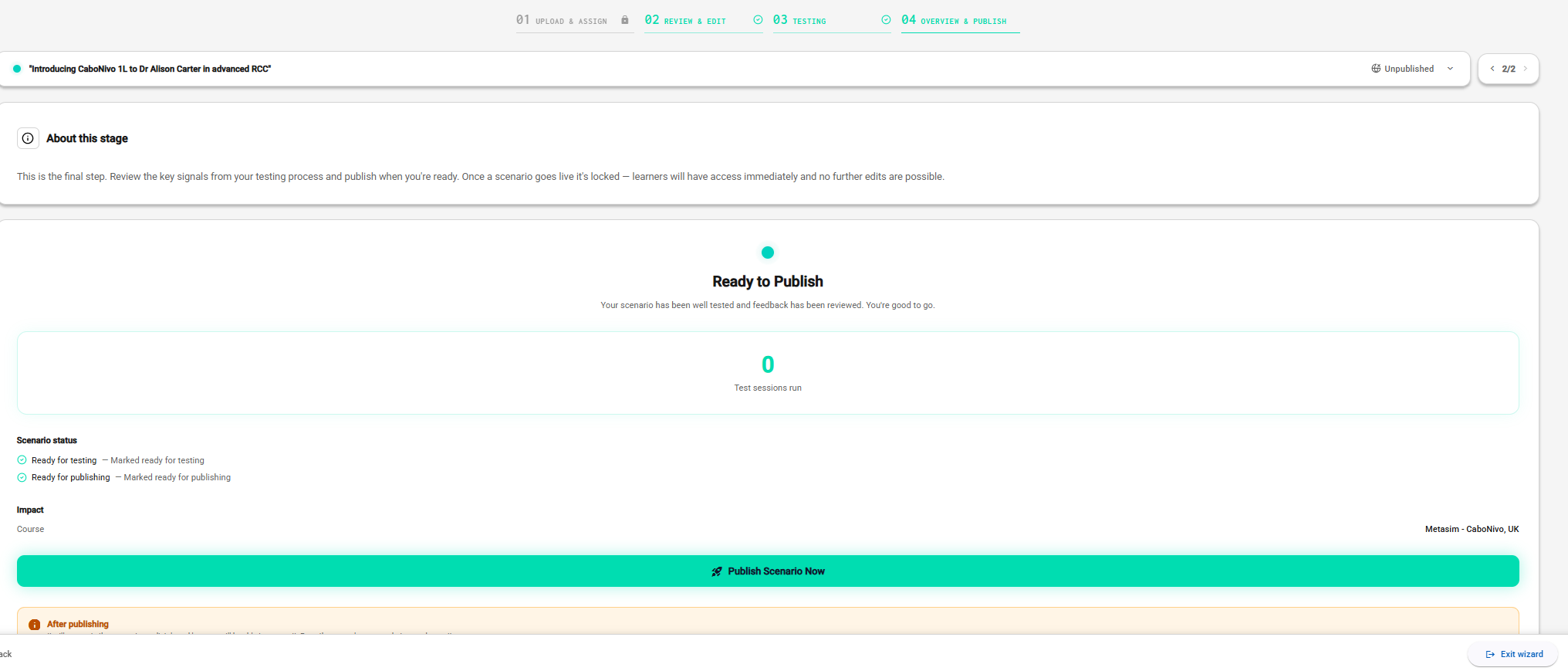
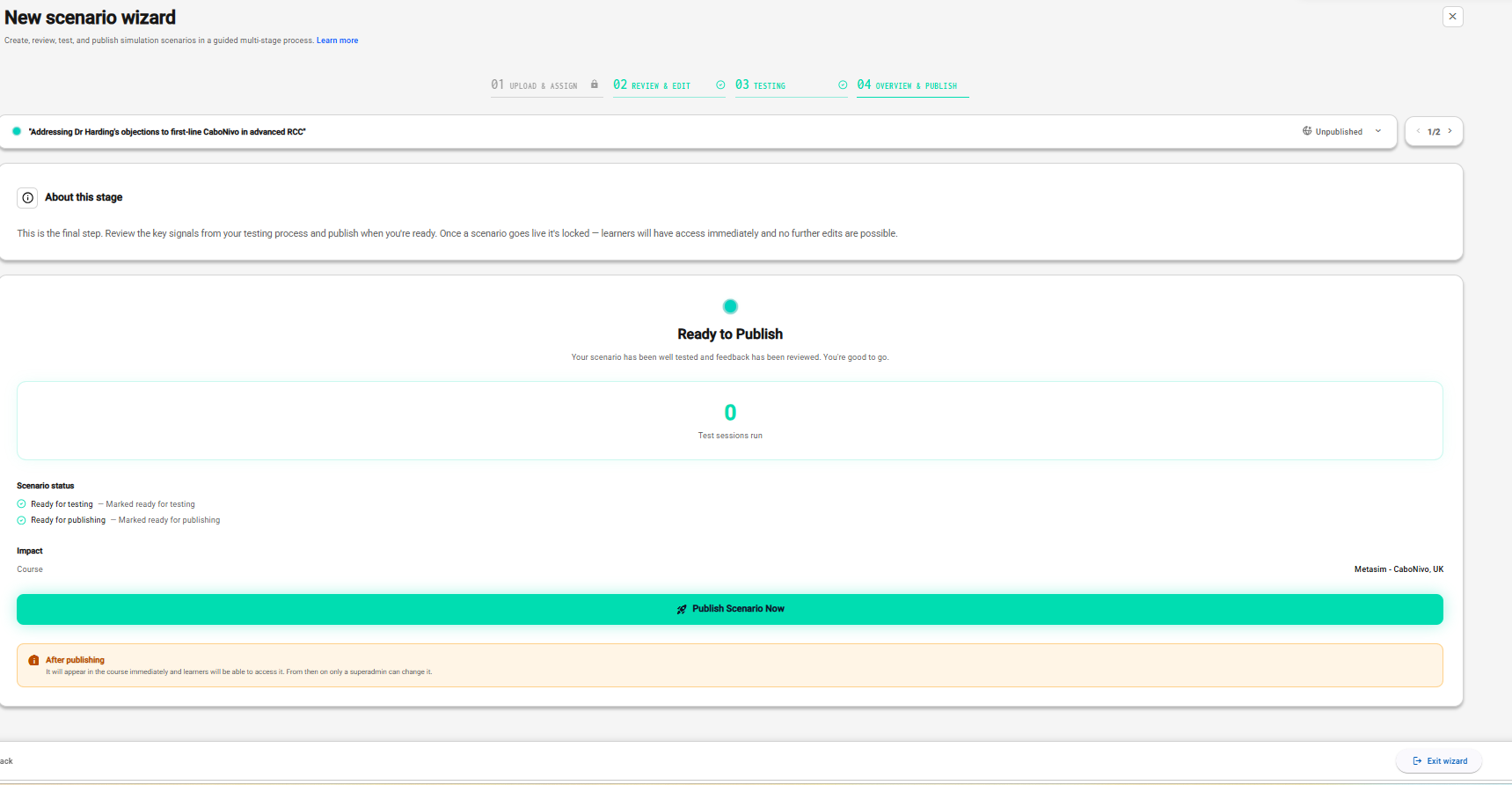
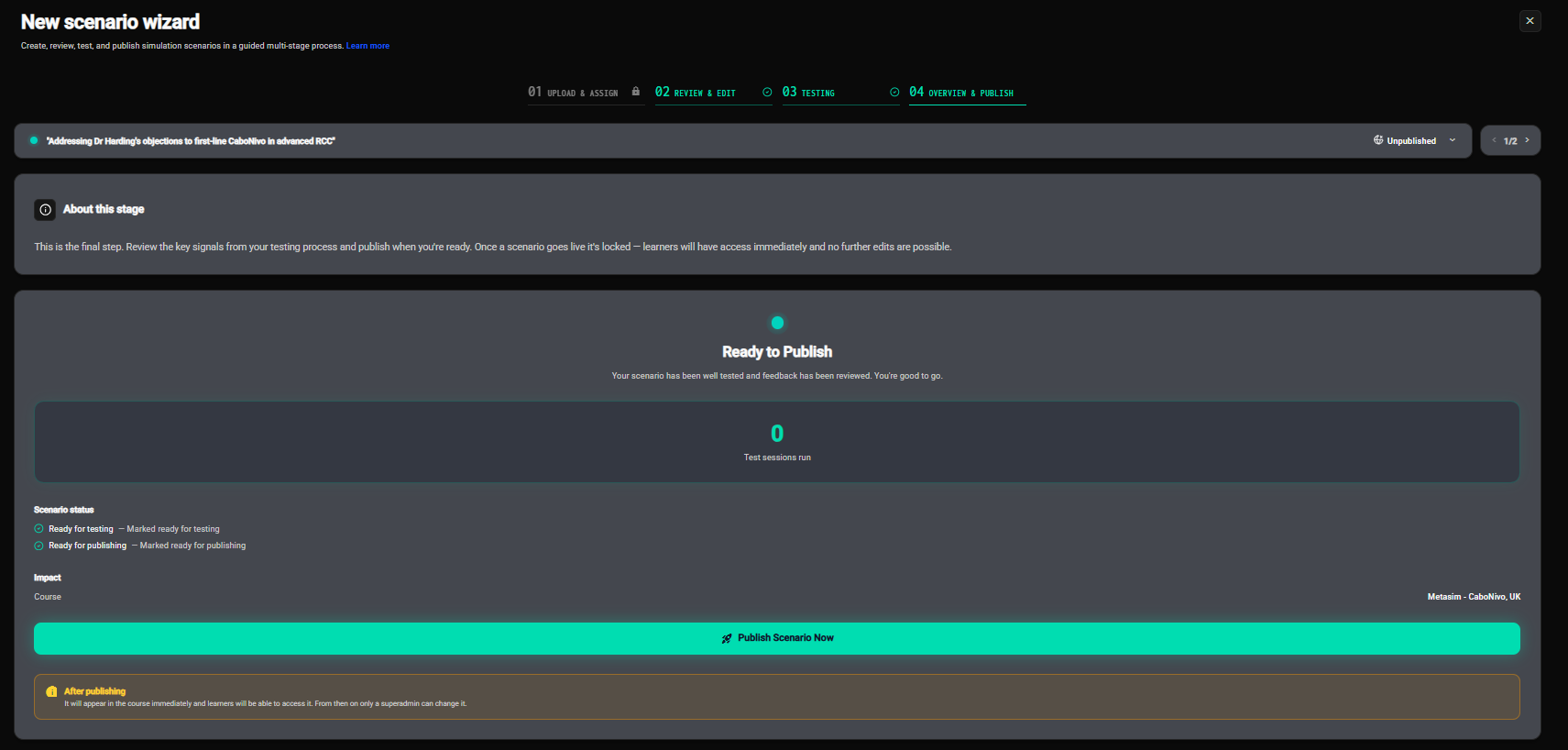
The page sums up where the scenario stands:
- Test sessions run - How many times the scenario was tested before publishing.
- Scenario status - Whether it was marked Ready for testing in stage 2 and Ready for publishing in stage 3.
- Impact - The course it will be published to.
When both steps are done, the page reads Ready to Publish.
Publishing
Click Publish Scenario Now and confirm in the dialog. The scenario appears in its course immediately and learners can open it.
Publishing a scenario that isn't fully ready
Readiness is your judgement, not a hard rule. If a scenario skipped one of the steps, you can still publish it: under Publish anyway, tick I understand this scenario has not been fully tested or reviewed. I accept responsibility for publishing it in its current state. The publish button then becomes available.
After publishing
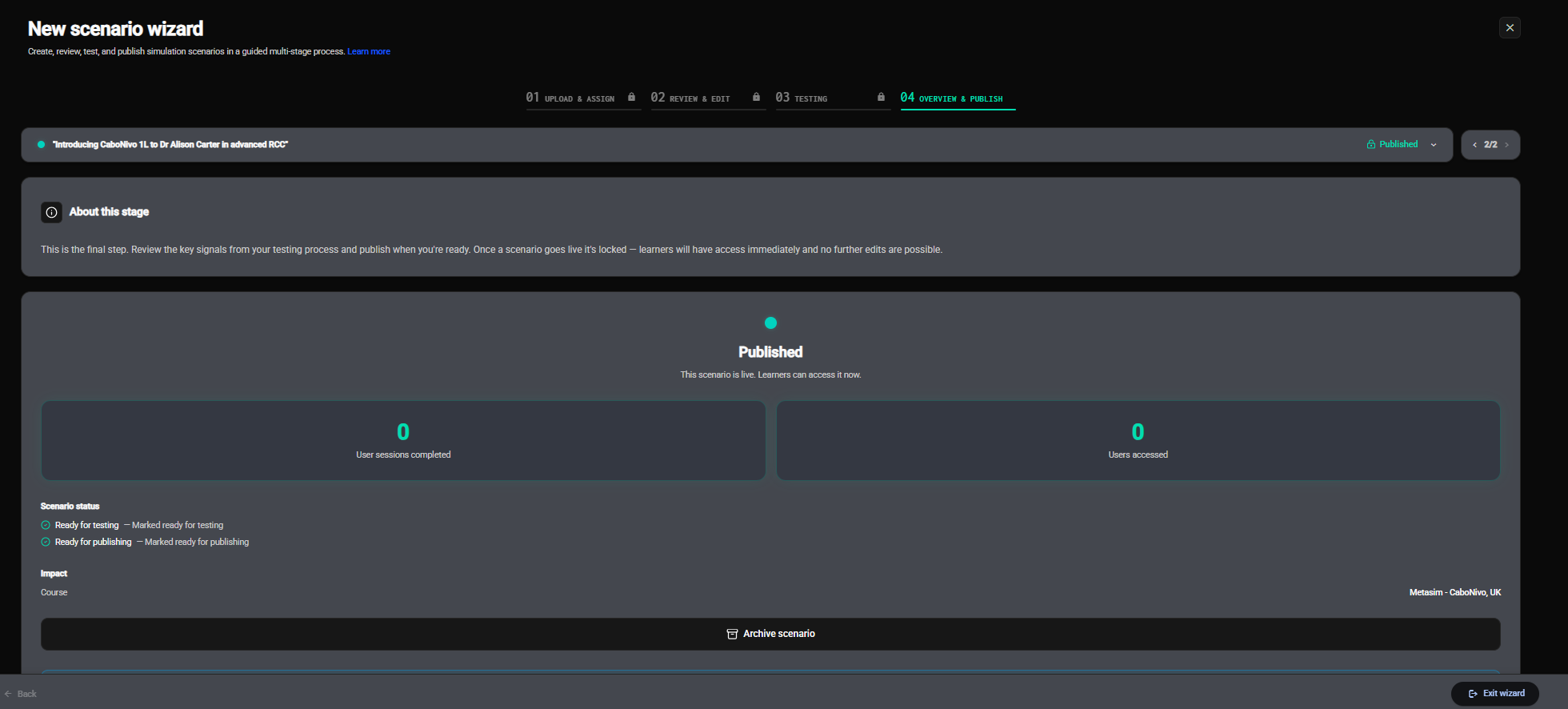
Once a scenario is published, it's locked: you'll see Scenario locked on the page, and the earlier stages can no longer be opened for it. To change a live scenario, create a new one, or contact Menta support.
The publish stage keeps working as the scenario's overview. Open a published scenario from the Scenarios list to see:
- User sessions completed - Sessions in which the learner got through the conversation and on to the mentor's feedback.
- Users accessed - How many different learners have opened the scenario, whether or not they started a session.
Internal and test accounts are left out of both figures. The figures are read when you open the page.
Archiving a scenario
To take a live scenario out of its course, click Archive scenario and confirm. Learners lose access straight away, and you're taken back to the Scenarios list. Their past sessions and results are kept, and you can bring the scenario back at any time with Activate on the Scenarios list - see Archiving and activating scenarios.