Managing scenarios
The Scenarios page lists every scenario of your company - the ones that are live, the ones that were archived, and the drafts still being authored. From here you can start a new scenario, pick up a draft where it was left, and change which scenarios learners can reach.
Browsing and searching
The list shows each scenario with its ID, title, status, course, practice partner, when it was created, who created it and who last edited it. To find a specific scenario:
- Search by typing into the search box at the top - it matches the scenario's ID and slug.
- Filter by IDs by typing one or more IDs into the second box, separated by commas - for example
12, 13. Use Clear filter to go back to the full list. - Filter by course with the Filter box in the Course column header - pick one or more courses to see only their scenarios.
- Paginate with the controls at the bottom of the list when there are more scenarios than fit on one page.
The list keeps itself up to date while it's open, so a colleague's changes appear without you having to reload. Use Refresh at the top if you want the latest data straight away.


Reading a scenario's status
| Status | What it means |
|---|---|
| Draft | Still being authored. Learners can't see it. Drafts show an ID starting with D-. |
| Published | Live in its course. Learners can open and practice it. |
| Archived | Taken out of its course. Learners can no longer open it, but its history is kept. |
| View only | A scenario that was written by hand rather than authored from a sheet. It can only be read. |


When a colleague has a scenario open for editing, a Locked badge with their name appears next to it. You can still open it, but only to read it until they leave it.
Opening a scenario
Click a row to see the scenario's details. The action at the end of each row depends on the scenario:
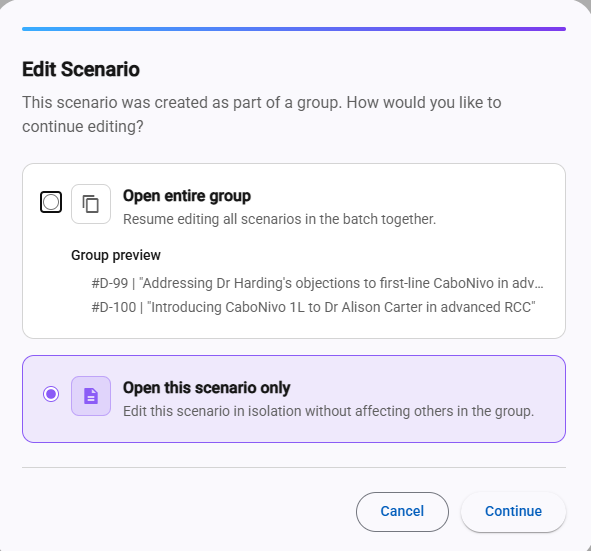
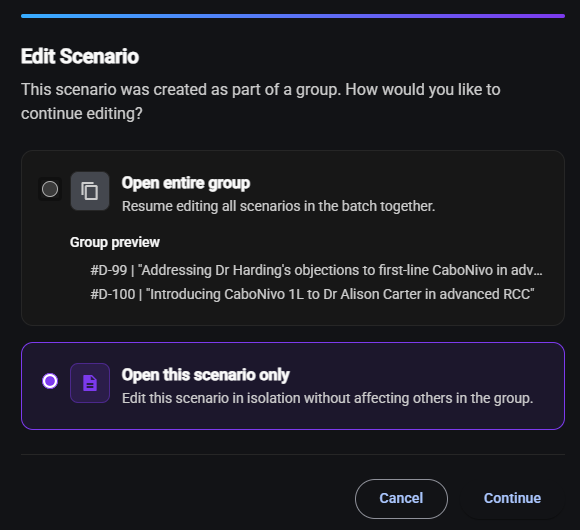
- Draft - The pencil reopens the scenario in the wizard, on the stage where it was left. If the draft was generated together with other scenarios from the same sheet, you're asked whether to open the entire group or just this one scenario.
- Published - The eye opens the scenario on the publish stage, where you can follow how learners use it. Nothing can be changed from there - see Publishing.
Archiving and activating scenarios
Archiving takes a scenario out of its course without deleting it. Learners can no longer open an archived scenario, but their past sessions and results are kept, and you can activate it again at any time.
To archive or activate scenarios:
- Tick the checkbox at the start of each row you want to change. The box in the header ticks every scenario on the page.
- Click the button next to Create new scenario:
- If every ticked scenario is published, the button reads Archive.
- If every ticked scenario is archived, the button reads Activate.
- If the selection mixes the two, or includes a draft, the button stays greyed out.
- Confirm in the dialog that opens.
The change applies straight away. A published scenario can also be archived on its own from the publish stage - see Archiving a scenario.
Creating a new scenario
Click Create new scenario at the top of the page to start the wizard. Before you do, make sure your scenario builder sheet is filled in as described in Preparing the scenario builder sheet, then continue with Creating scenarios.