Creating scenarios
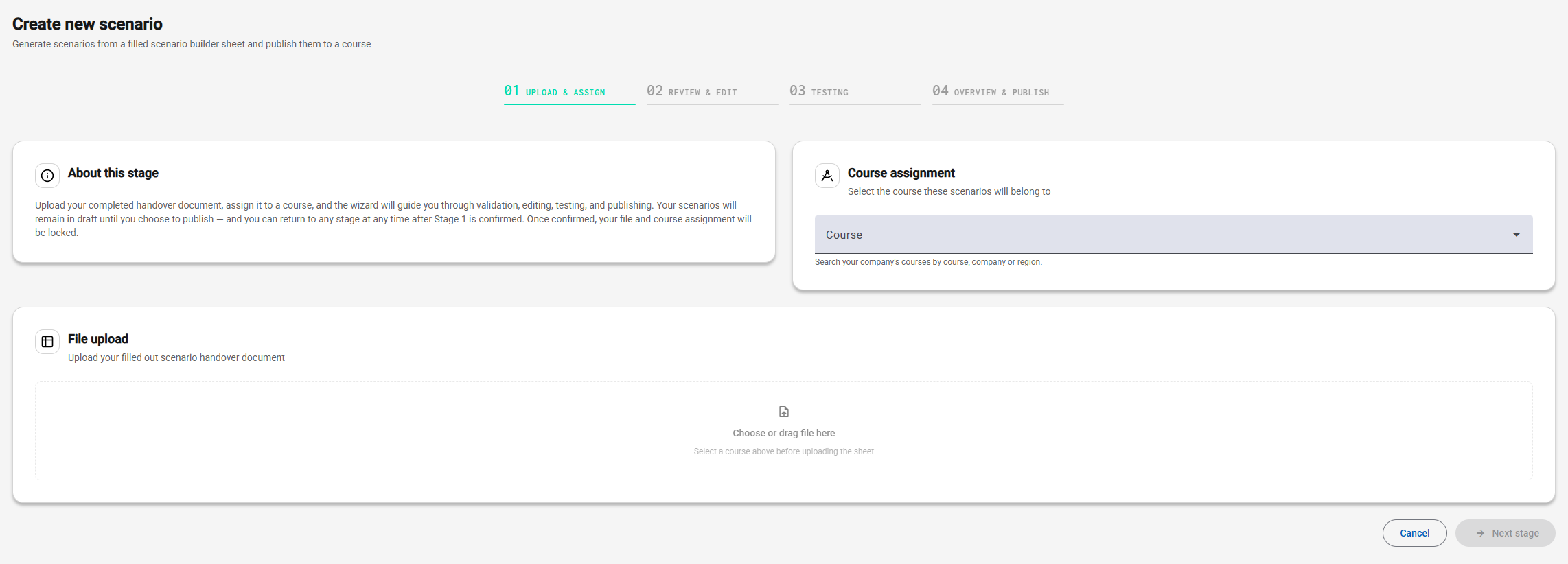
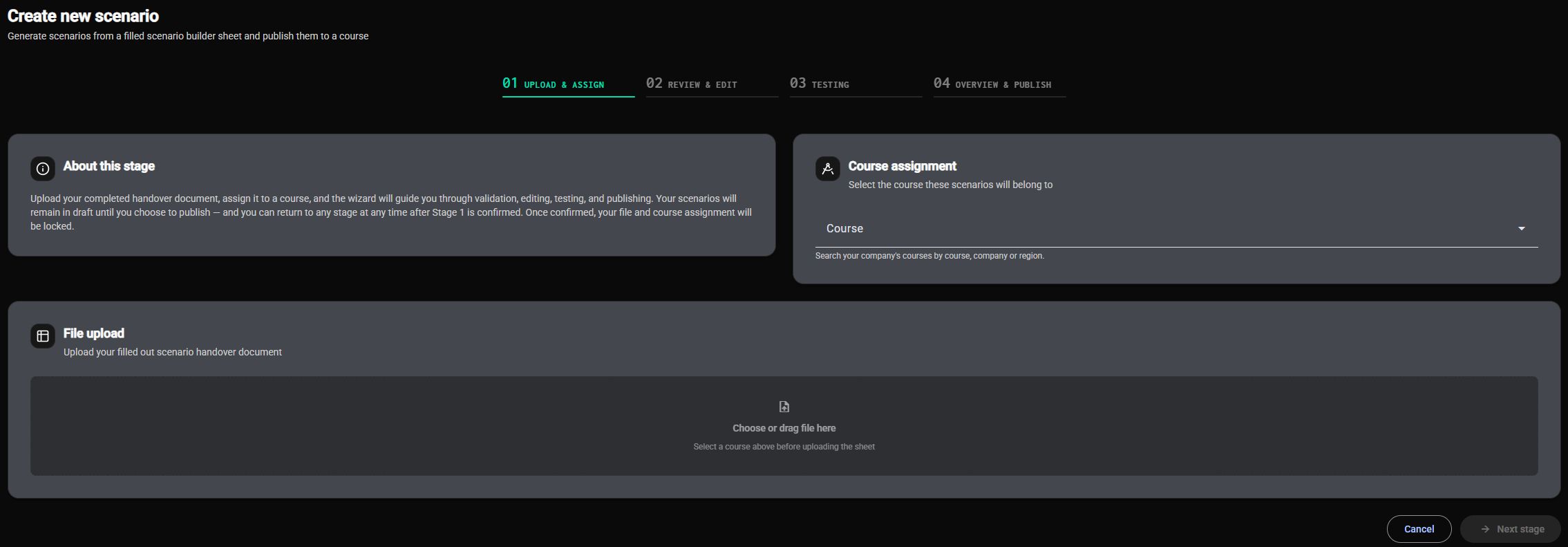
Stage 1 of the wizard, Upload & assign, turns your filled-in scenario builder sheet into scenarios. You choose the course, upload the sheet, and Menta generates one scenario for every complete scenario column.
Starting the wizard
On the Scenarios page, click Create new scenario. The wizard opens on stage 1.
Choosing the course
Under Course assignment, select the course the new scenarios will belong to. Only your company's courses are offered. Every scenario generated from this sheet goes into that course.
Uploading the sheet
Under File upload, drag the sheet onto the upload area, or click it to choose the file. You can upload one .xlsx file of up to 10 MB at a time.
Menta then works through the sheet in two steps:
- Reading the sheet - The layout is checked: the header row, the scenario columns, and whether every scenario you started is complete. If something is wrong, you'll see Your file couldn't be validated with the details. Fix the sheet and use Re-upload file. The scenario sheet guide explains what the layout has to be.
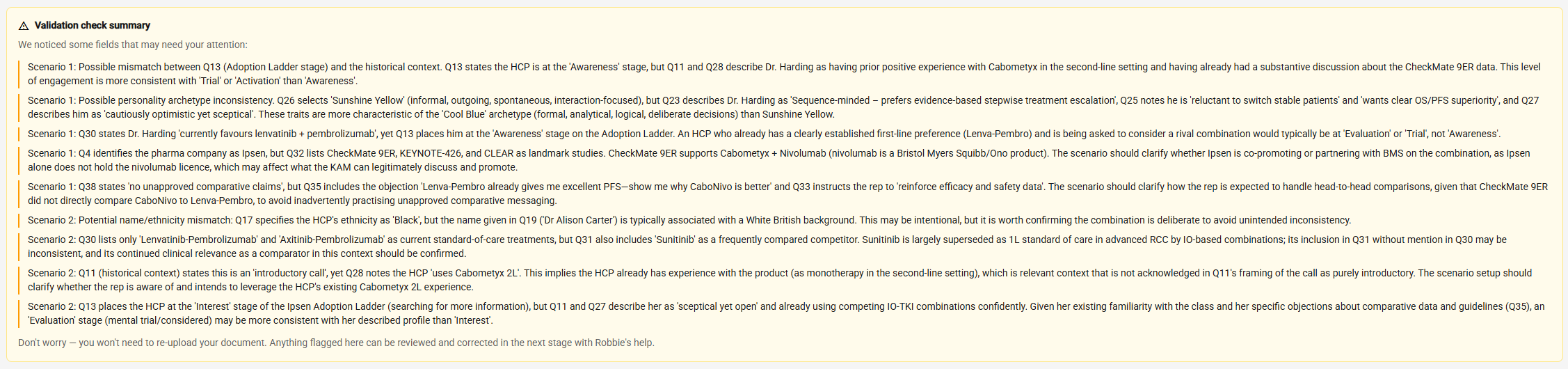
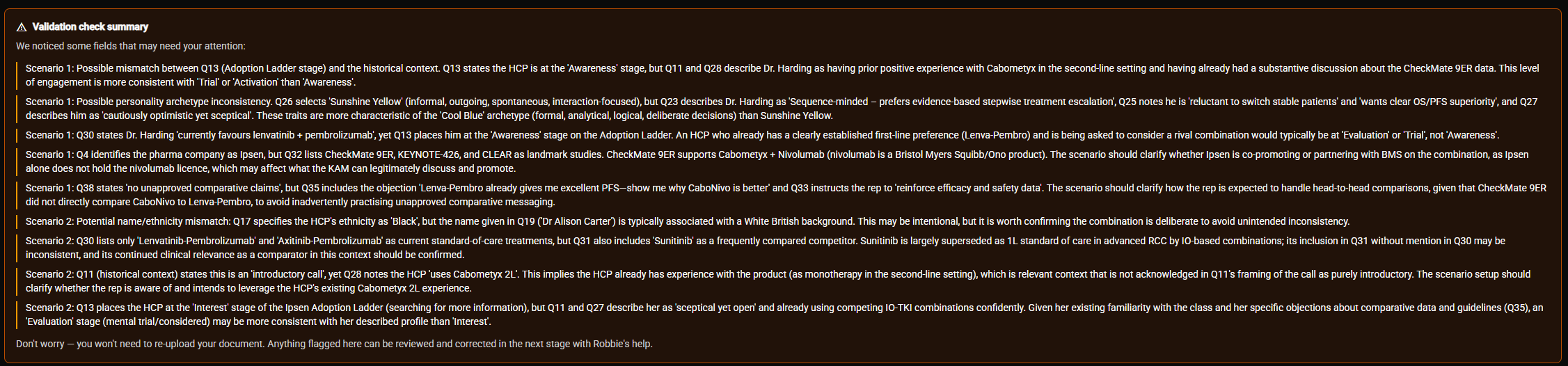
- Checking the sheet with the agent - Before anything is written, the authoring agent reads your answers and lists anything it finds unclear, contradictory or missing. Nothing is generated until you've seen these findings.
Acknowledging the findings
If the check found something worth your attention, you'll see it listed as a warning. You can either:
- fix the sheet and upload it again, or
- tick I acknowledge the validation warnings and wish to proceed to generate the scenarios as they are.
Errors must be fixed before you can continue; warnings are your call.
Generating the scenarios
Once the sheet is clear, Menta generates the scenarios. This can take up to 5 minutes - leave the page open while it works. You can cancel at any point.
When generation is done, the scenarios are ready for review. Nothing has been published: continue to Reviewing and editing to go through them.
Once you continue past stage 1, the sheet and the course are locked for this run. To use a different sheet or course, start a new scenario from the Scenarios page.
Picking up an unfinished run
If you leave the wizard before continuing past stage 1, the run is kept in your browser. The next time you open Create new scenario in the same browser, you'll see Unfinished run found, with the sheet and what was already generated. Choose Resume to carry on, or Start from the beginning to discard it.
After stage 1, the scenarios are saved as drafts in Menta itself, so you can reopen them from the Scenarios list from any browser - see Opening a scenario.