Uploading files
Files are how content gets into a knowledge collection. You add them when you first create a collection, and you can add more at any time by editing an existing one. This page explains how the upload works, what we accept, and the requirements every file must meet.
How to upload
Wherever you see the upload area - in the create dialog or when editing a collection - you can add content in a few ways:
- Drag and drop one or more files, or even whole folders, onto the upload area.
- Click Choose Files (or Add More Files) to pick individual files from your computer.
- Click Choose Folder (or Add Folder) to select an entire folder at once. Every supported file inside it - including files in sub‑folders - is added in one go, and anything that isn't a supported type is skipped automatically.
Selected files appear in a list before they're sent, so you can review them, remove any individual file you didn't mean to add, or use Clear all to empty the list and start over. When you save the collection, the files are uploaded and begin processing.
Supported file types
You can upload the following document formats:
| Format | Extensions |
|---|---|
.pdf (versions 1.4-2.0) | |
| Word | .docx, .doc |
| Excel | .xlsx, .xls |
| PowerPoint | .pptx, .ppt |
| OpenDocument | .odt, .ods, .odp |
| Plain text | .txt, .rtf, .csv |
If a file isn't one of these types it will be skipped, with a message telling you which file and why. When you add a folder, only files in these formats are picked up - everything else is left out automatically.
File limits
- Size - up to 500 MB per file.
- File name - up to 255 characters, and the name must include a normal file extension (for example,
.pdf). Avoid unusual names; a clear name likeReturns-Policy-2026.pdfis both easier to manage and less likely to be rejected.
What's checked when you add files
The moment you add files - whether you pick them individually, drop them in, or pull them from a folder - each one is checked, before anything is uploaded. Files that don't pass are simply left out; the rest are added normally. Each file is checked for:
| Check | A file is skipped when… |
|---|---|
| Unsupported file type | It isn't one of the supported formats (PDF, Word, Excel, PowerPoint, OpenDocument, or text). |
| Exceeds size limit | It is larger than 500 MB. |
| Empty file | It has no content (0 bytes). |
| Invalid file name | The name is blank, has no file extension, or is longer than 255 characters. |
| Duplicate name | A file with the same name is already in the collection, or appears twice in your selection. |
| Duplicate content | A file with identical content is already in the collection, or appears twice in your selection. |
When one or more files are skipped, a summary appears beneath the upload area. It shows how many files were skipped (for example, "3 files skipped") and can be expanded to see the details. Inside, the skipped files are grouped by reason - each group shows its count and lists the affected file names alongside the specific reason each one was left out. This makes it easy to spot, say, that two files were the wrong type and one was too large.
This is informational: the files that did pass are added and ready to upload. Once you've reviewed it, you can dismiss the summary, and you can always use Clear all to reset your selection and start again.
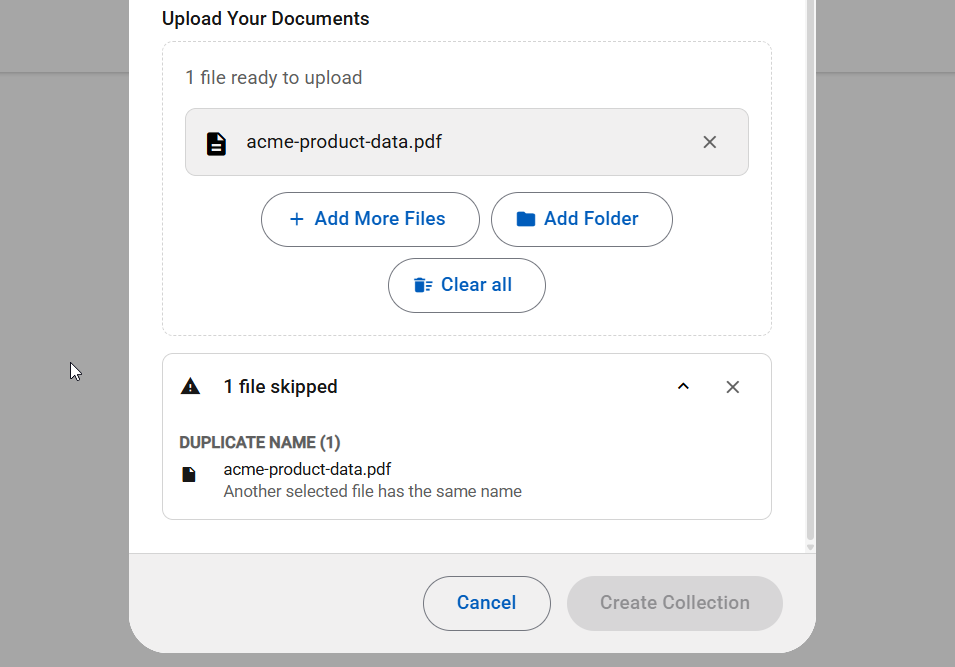
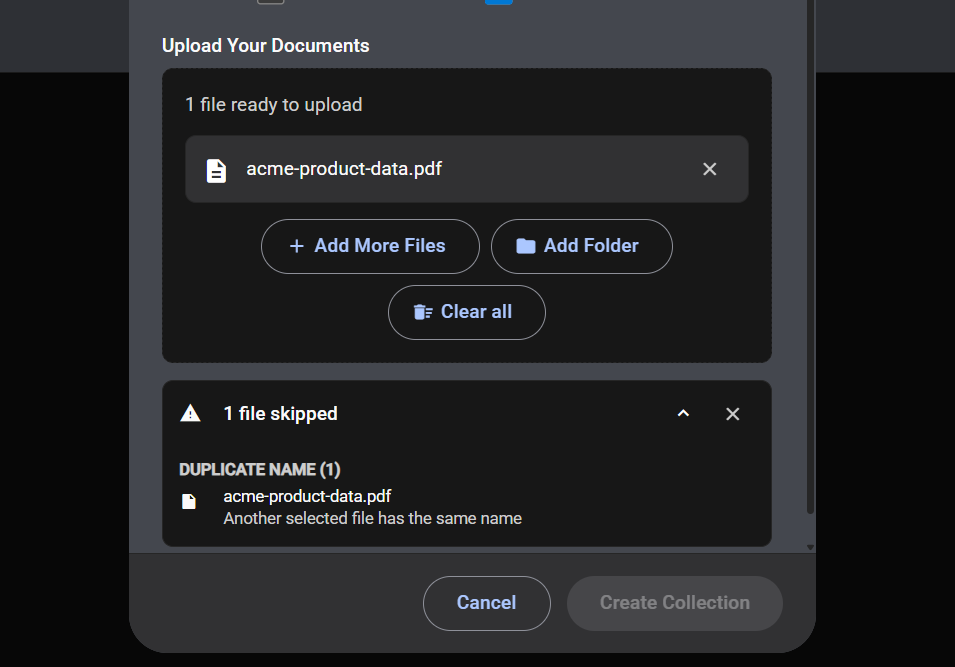
This is especially useful when you add a whole folder. Rather than failing the upload, Menta keeps every supported file and lists exactly what it left behind and why - so you can fix or re‑export those files and add them separately.
Files must be readable
Menta has to be able to open and read every file in order to use its contents. A file that can't be opened is of no use to a course, so check that none of your documents have these problems before uploading.
- Password protection. Remove any password or open‑protection before uploading - we cannot enter a password to open your file.
- Encryption. Encrypted files can't be read and will fail.
- Corruption. A file that won't open correctly on your own computer won't work here either. Confirm it opens normally before uploading it.
- Empty files. Files with no content are skipped.
If a file fails for one of these reasons, fix the original document and upload it again.
Match the file language to the collection
Every collection has a single language, chosen from the language dropdown when you create or edit it. The documents you upload should be written in that same language.
For example, if a knowledge collection's language is set to English, only upload files written in English. If you have material in another language - say German - create (or use) a separate knowledge collection whose language is German, and upload the German files there.
Keeping each knowledge collection to one language, and making sure the files genuinely match it, helps Adam understand and use your content correctly. Mixing languages within a single collection, or uploading files in a language other than the one selected, can lead to poor or unreliable results.
If you work in several languages, set up one knowledge collection per language and assign whichever ones a course needs. A course can use more than one knowledge collection at the same time.
Duplicate files
Menta automatically skips a file if the same file (by name or by content) is already in that knowledge collection, so you won't accidentally add the same document twice. You'll see a short notice when this happens - it's nothing to worry about.
Take care, though, when the same document lives in two different knowledge collections that are both used by one course. In that case the course effectively sees the content twice, which can make Adam treat a single source as if it were two - see Best practices for how to avoid this.
What happens after you upload
Once a file is uploaded it doesn't go straight into the knowledge collection. First it is scanned for safety - checked for viruses and malware and confirmed not to be damaged - and only then is its content processed so Adam can use it. A file that fails the safety scan is rejected and set aside: it never becomes part of the collection.
Each file shows its current status so you can follow this along:
| Status | What it means |
|---|---|
| Inspecting | The file is being security‑checked - scanned for viruses and malware and confirmed not to be damaged - before any of its content is used. |
| Processing | The file passed inspection, and its content is being read and added to the knowledge collection. It isn't available to courses yet. |
| Completed | The file has finished processing, and its content is now available to courses that use the collection. |
| Failed | The file couldn't be added. It either didn't pass the security inspection (for example, something harmful was found) or couldn't be read (for example, it was password‑protected, encrypted, or corrupted). |
If a file fails, correct the original document and upload it again. All of this happens in the background, so you can close the dialog and come back later - re‑open the collection to see the latest status.
A quick checklist before you upload
- The file opens normally and isn't password‑protected, encrypted, or corrupted.
- The file is one of the supported formats: PDF, Word, Excel, PowerPoint, OpenDocument, or text (TXT, RTF, CSV).
- The file's content is in the same language as the knowledge collection.
- The content is real text (or a scanned file with OCR applied), not just images.
- The document has clear headings and focused sections.
- Terminology and acronyms are consistent and spelled out.
- The knowledge collection groups related material and doesn't duplicate documents already used elsewhere by the same course.
Next steps
Getting files in is half the job - how you prepare them makes a real difference to the quality of Adam's responses and feedback. See Best practices.