Managing collections
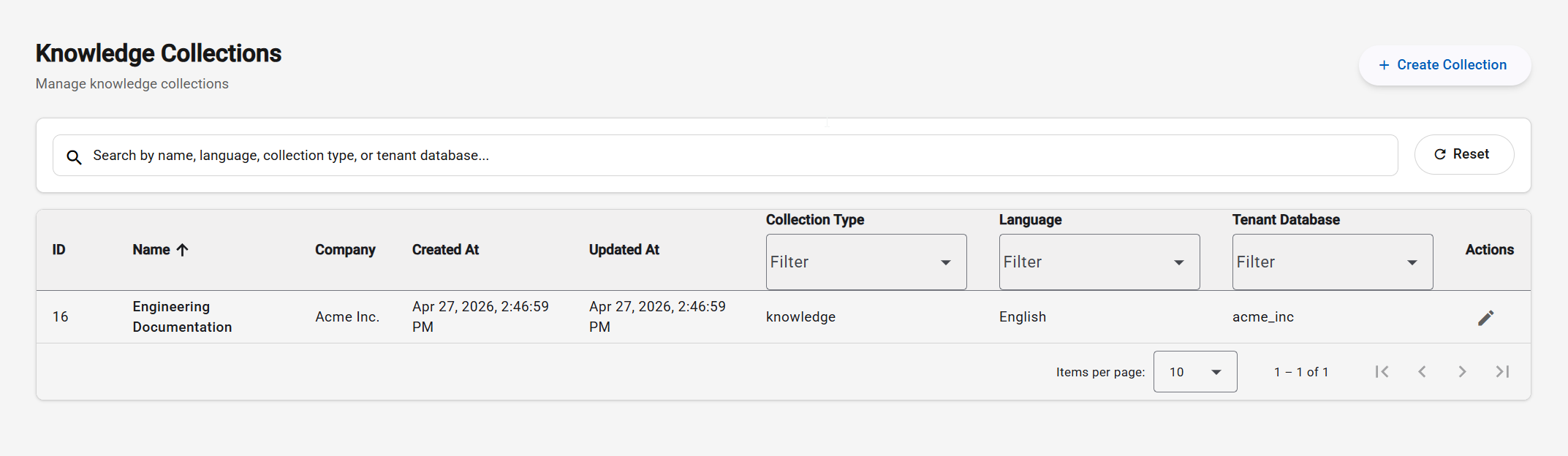
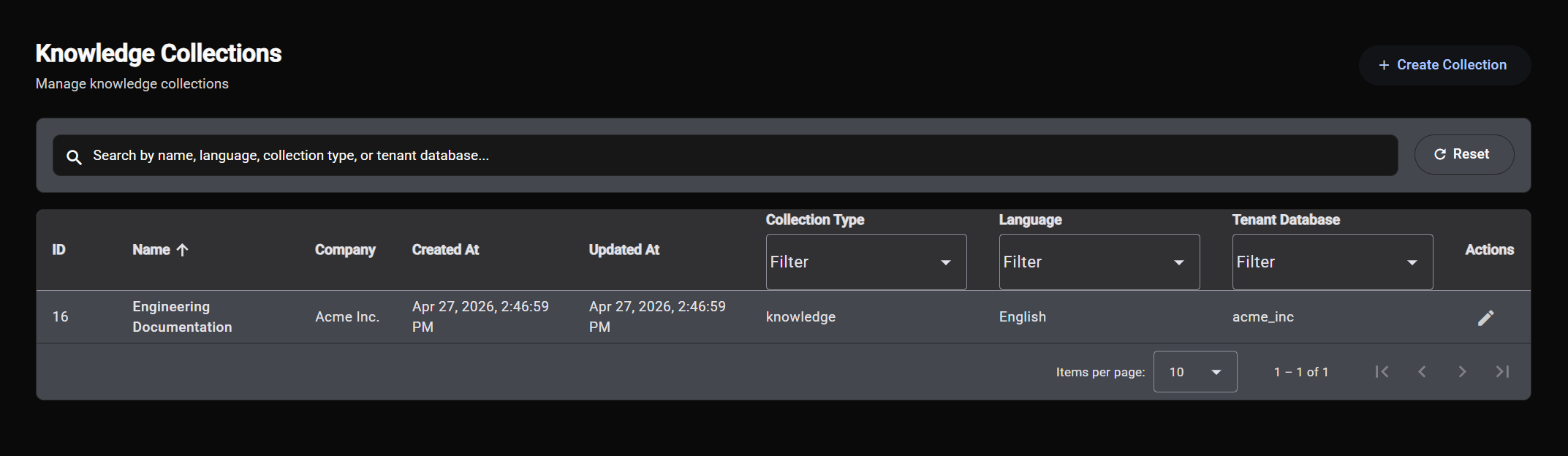
The Knowledge Collections page lists every knowledge collection you have access to. From here you can find an existing collection, create a new one, edit one, or open a collection to see what's inside it.
Browsing and searching
The list shows each collection with its name, the company it belongs to, its collection type, its language, and when it was created and last updated. To find what you're looking for:
- Search by typing into the search box at the top - it matches against the collection name, language, and collection type.
- Filter using the dropdowns in the collection type and language columns. You can pick more than one value, and each dropdown has its own search box for long lists.
- Sort by clicking a sortable column header (such as name or the created/updated dates). Click again to reverse the direction.
- Paginate with the controls at the bottom of the list, choosing how many collections to show per page.
Use Reset to clear all filters and search terms and return to the full list.
Opening a collection
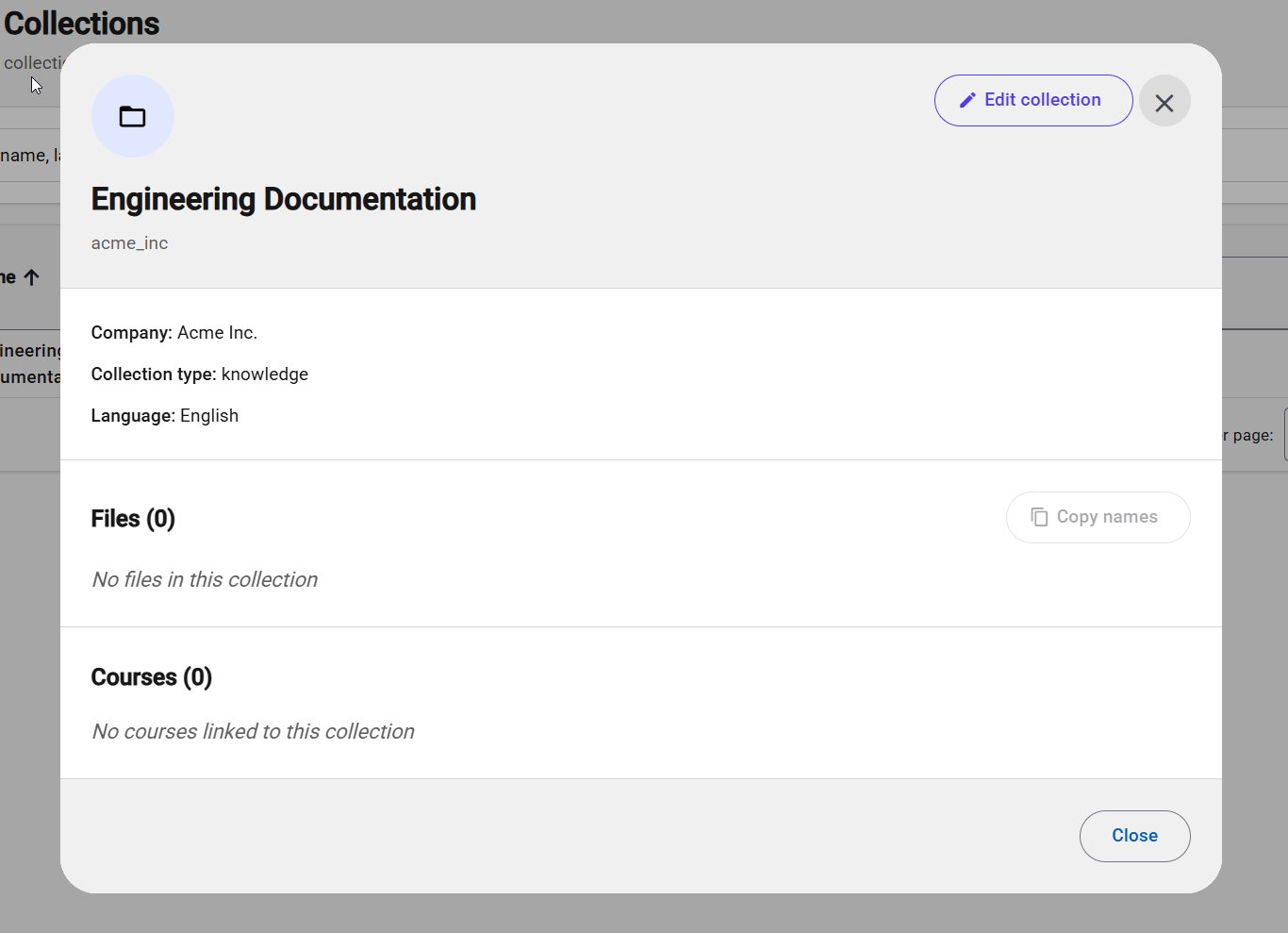
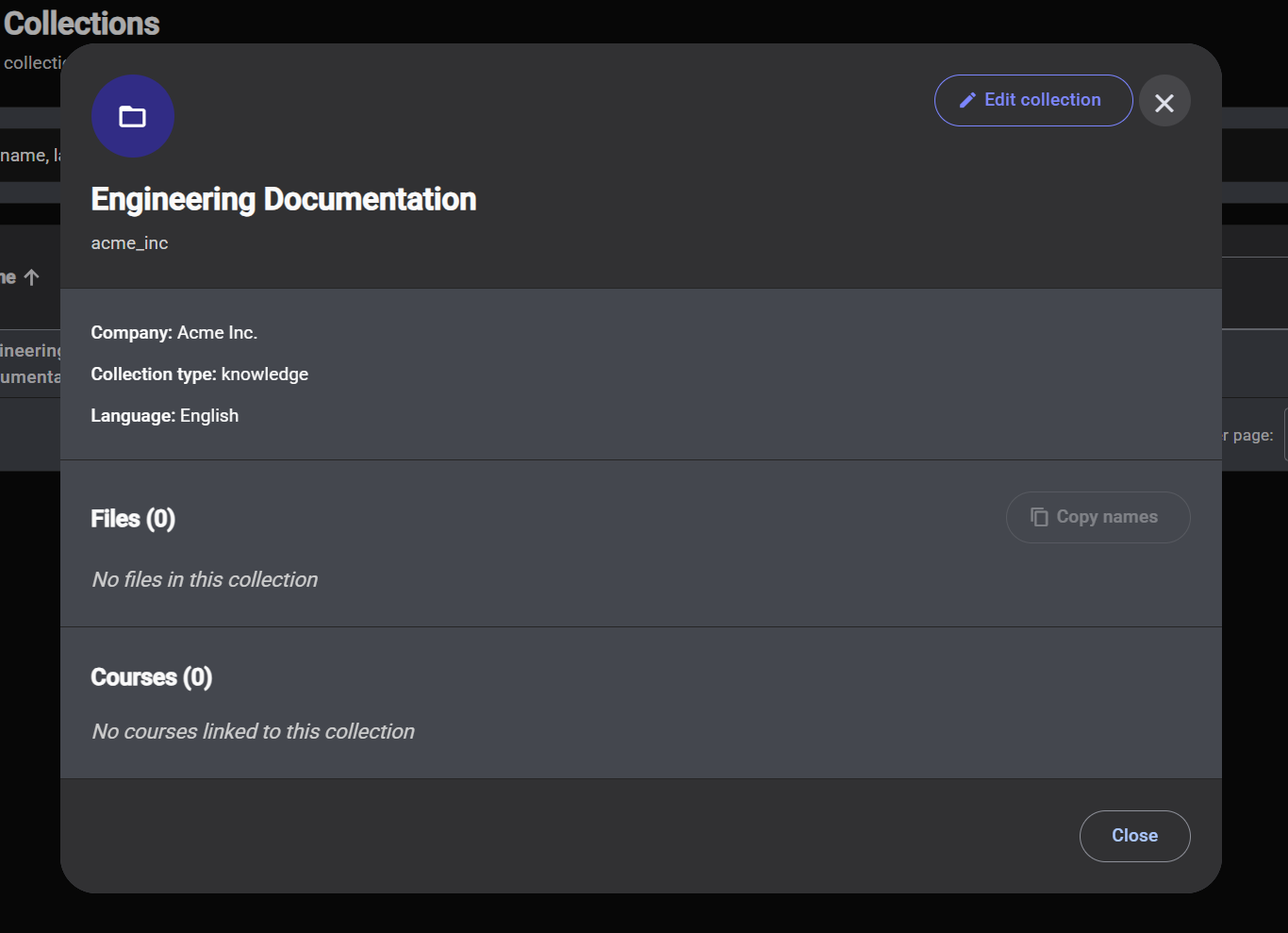
Click any row to open that collection's details. The detail view shows:
- Overview - the company, collection type, and language.
- Files - every document in the collection, each with its name, type, and current processing status. You can copy all the file names to your clipboard with Copy names.
- Courses - the courses this collection is currently linked to.
From the detail view you can jump straight into editing with the Edit collection button.
Creating a collection
Click Create Collection at the top of the list to open the creation dialog, then fill in:
- Name - a clear, descriptive name so the collection is easy to recognise later. Something like
Product Docs - Acme Suiteis more useful thanCollection 1. - Collection type - choose the type that best describes the content. The type tells Menta what kind of material the collection holds. The available types are set up for your account; pick the closest fit.
- Language - the language the documents are written in.
- Company - the company the knowledge collection belongs to. This is your company, and it's filled in for you.
- Course - the course this knowledge collection will be linked to. For now, a collection's course is chosen here, when it is created, and can't be changed afterwards - so pick the right one.
- Files - add at least one document. See Uploading files for accepted formats and requirements.
Click Create Collection to save. The collection is created and your files begin processing right away.
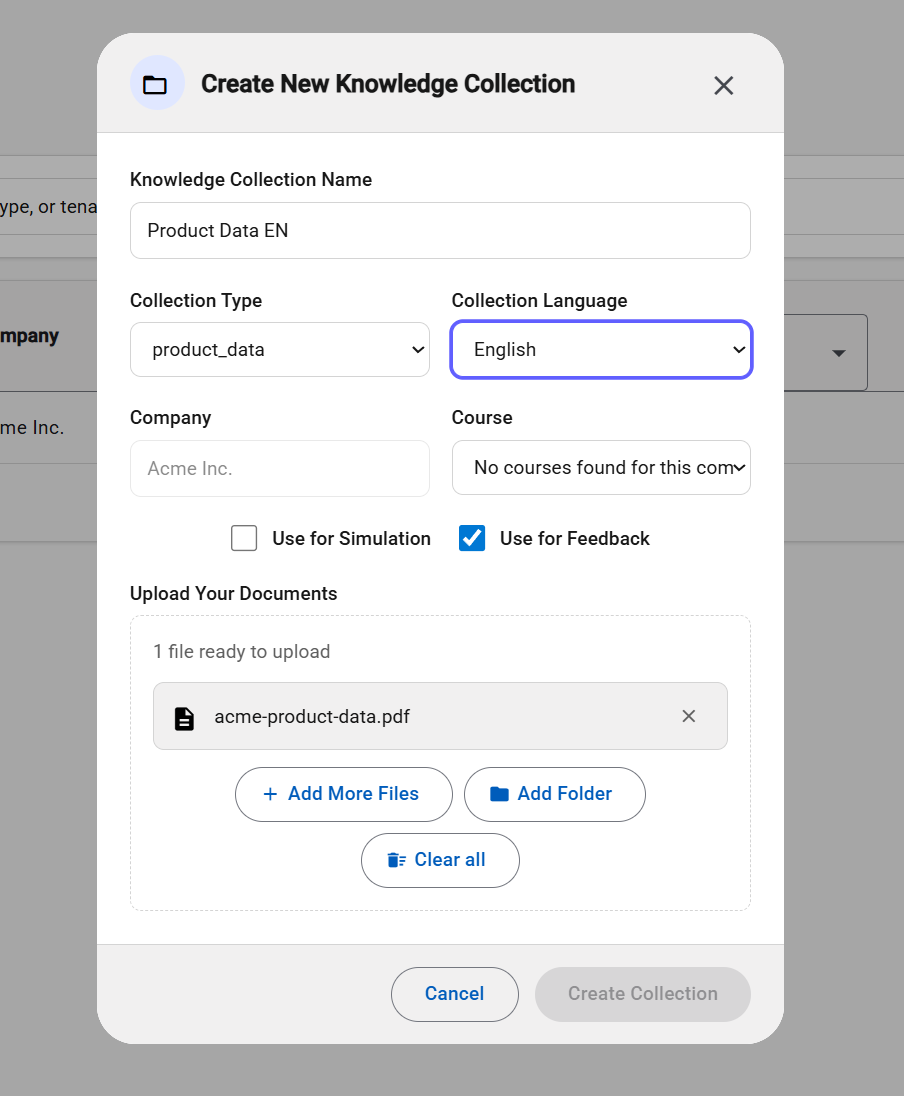
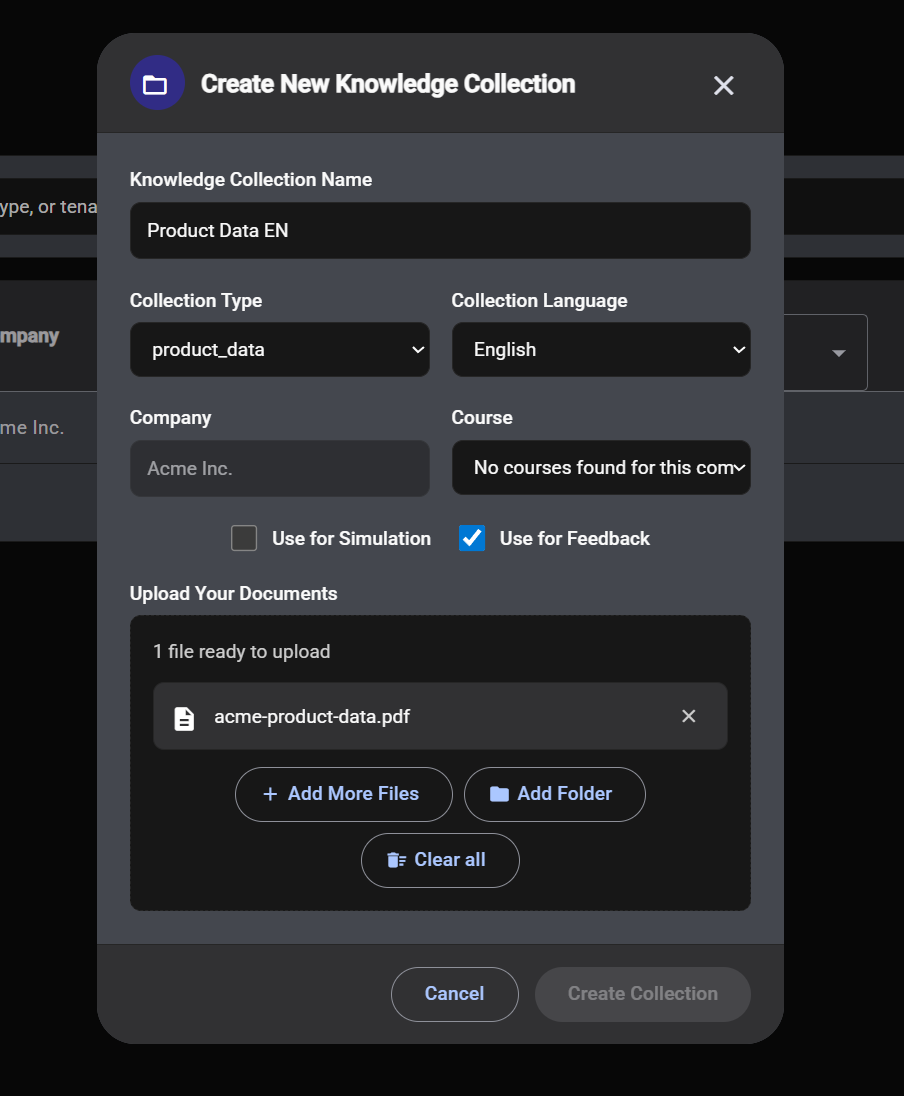
A new collection needs at least one file before it can be created. If the Create Collection button stays disabled, check that every required field is filled in and that you've added at least one valid file.
Editing a collection
Open a collection and choose Edit collection, or use the edit action on the collection's row in the list. The edit dialog lets you:
- Update the name, collection type, and language.
- Add more files to the collection.
The company and the course a knowledge collection is linked to can't be changed after it is created. If you need to move a collection to a different course, get in touch with your Menta contact.
Your changes are saved when you click Save Changes. If you haven't changed anything, the button stays disabled.
Next steps
A knowledge collection is only as useful as the documents in it. The next page covers how to get your files in and what makes a good upload: Uploading files.