Managing cohorts
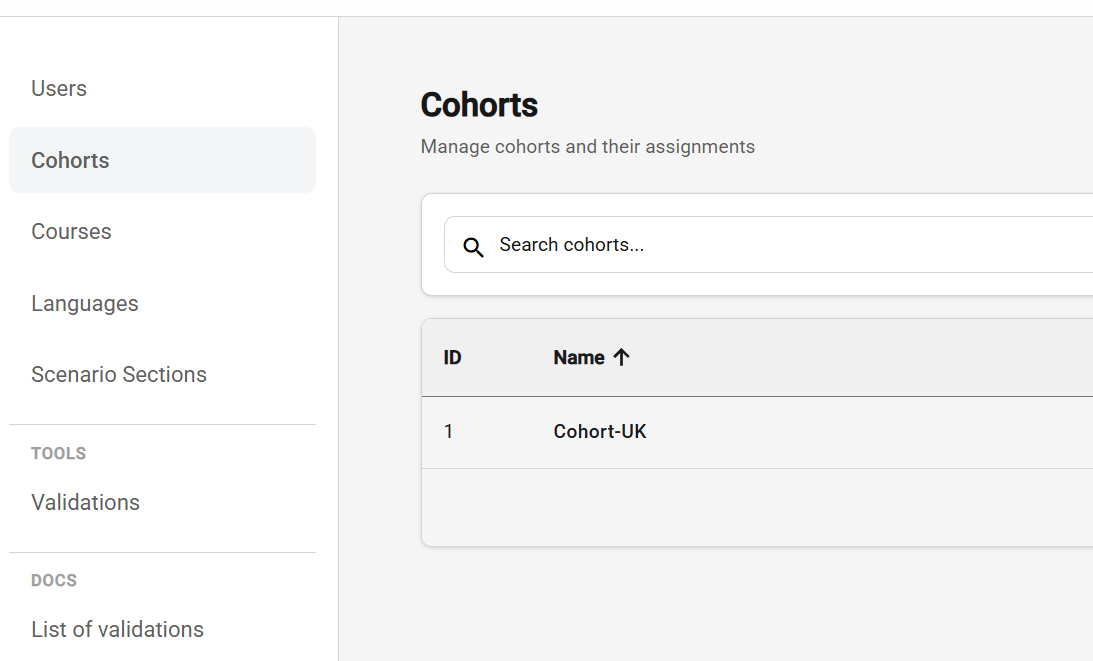
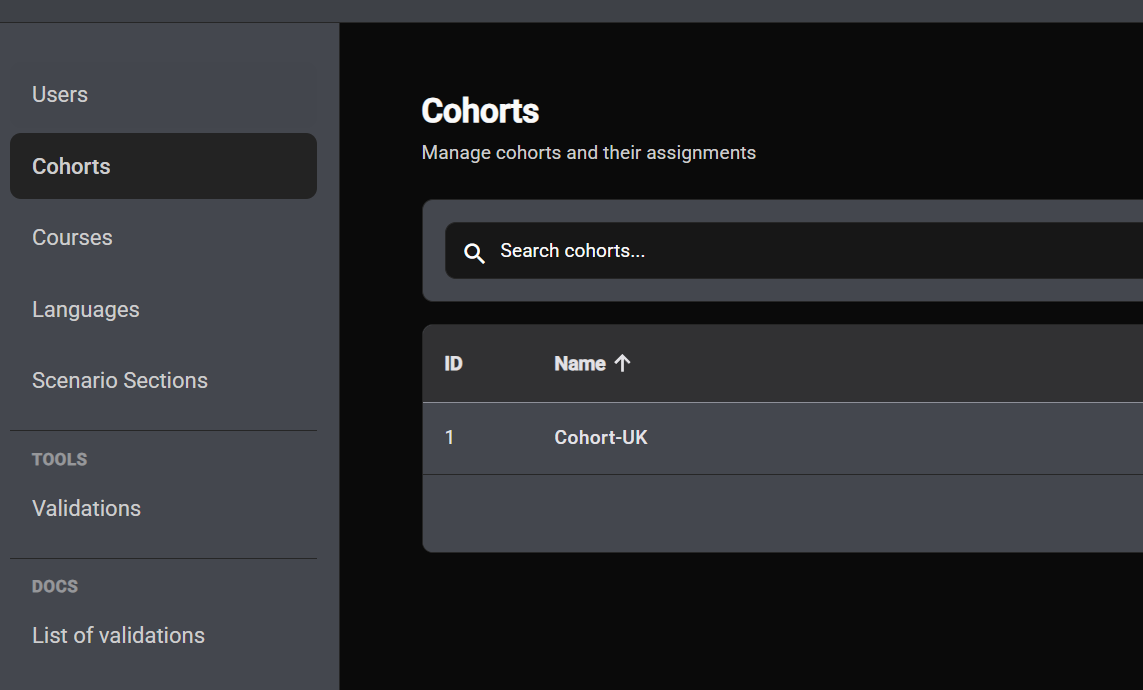
The Cohorts page lists every cohort you have access to. From here you can find an existing cohort, create a new one, or edit one that already exists.
Browsing and searching
The list shows each cohort with its name, the company it belongs to, and when it was created and last updated. To find a specific cohort:
- Search by typing into the search box at the top - the list filters as you type and matches against the cohort name.
- Sort by clicking any sortable column header. Click again to reverse the direction.
- Paginate with the controls at the bottom of the list when there are more cohorts than fit on one page.
As with the user list, the current search, sort, and page are reflected in the URL, so you can bookmark or share a specific view.
Creating a cohort
To create a new cohort:
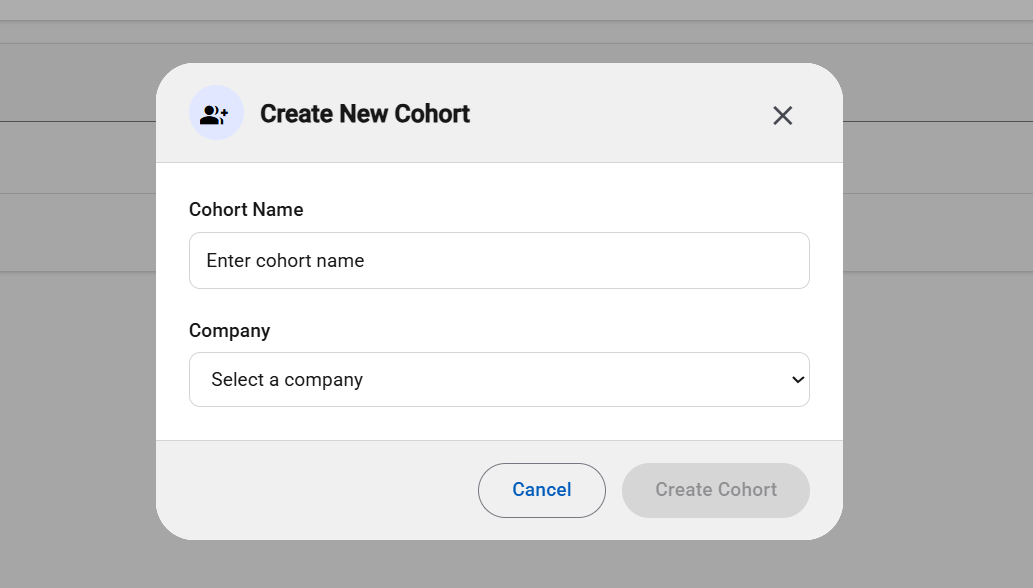
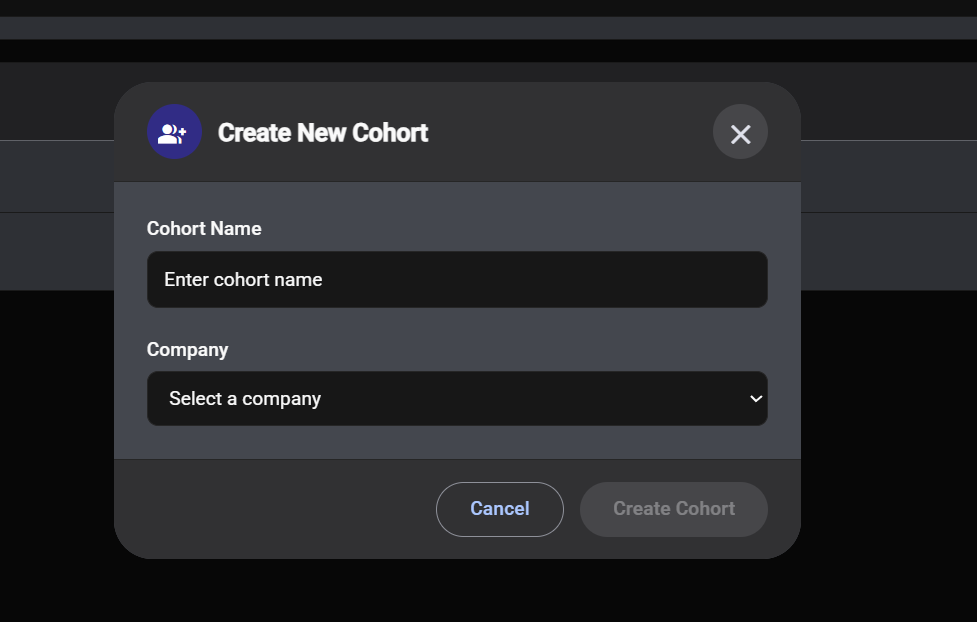
- Click Create cohort at the top of the list.
- Give the cohort a clear, descriptive name. Names should be unique within a company so they're easy to recognize later - for example,
Sales - EMEA - 2026 Q1is more useful thanGroup 1. - Pick the company the cohort belongs to. A cohort always lives under exactly one company.
- Click Create to save.
The new cohort appears in the list immediately and is ready to have users added to it.
Editing a cohort
Existing cohorts can be edited from the same list. Click the edit action on the cohort's row and the edit dialog opens with the cohort's current values pre‑filled.
Editing is intended for things like correcting a name. Changing a cohort's company is intentionally a more involved operation - if you find you need to do that frequently, get in touch with your Menta contact so they can help you find a workflow that fits.
Refreshing the list
If you've made changes elsewhere - for example, added users through an import that referenced new cohorts - use Refresh at the top of the list to fetch the latest data.
Next steps
A cohort on its own doesn't do much. The real value comes from putting users into it, which is covered on the next page: Adding users to a cohort.