Adding users to a cohort
There are a few different ways to make a user part of a cohort, depending on how many people you're adding and where you happen to be in the Admin Portal. They all produce the same result - the user becomes a member of the cohort - so pick whichever fits the situation.
From a user's detail view
This is the most direct option when you're already looking at a single user.
- Open the Users list and click the user you want to update. See Viewing user details for a refresher.
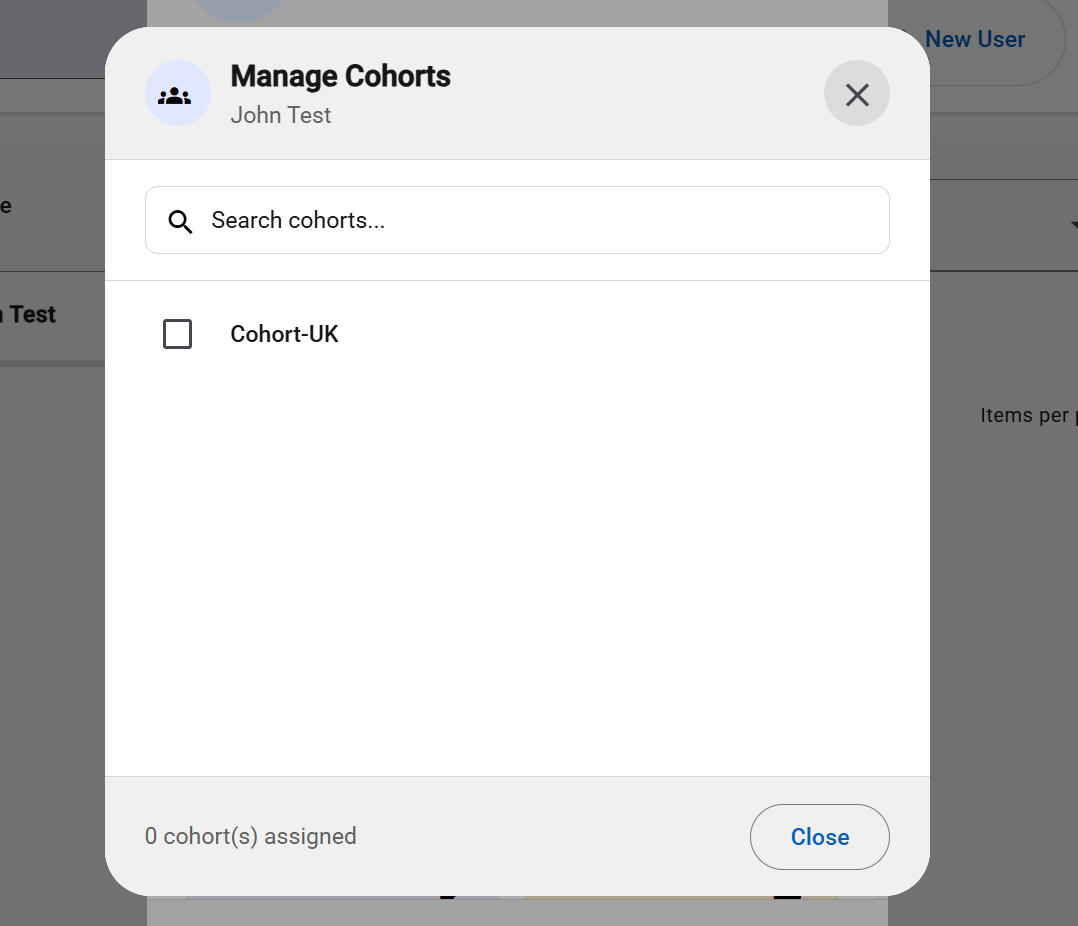
- Click Manage cohorts in the user detail view.
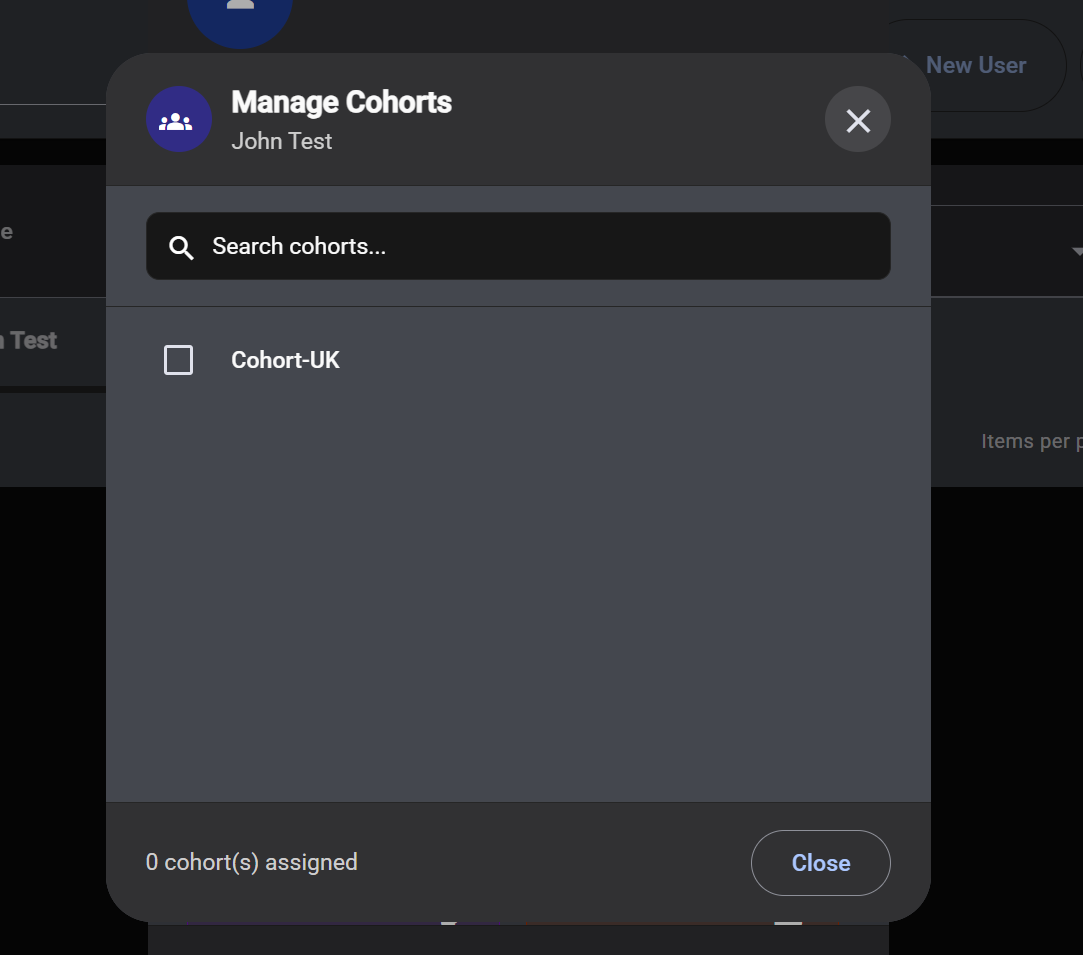
- A dialog opens with the full list of cohorts available to that user. Cohorts they're already in are highlighted.
- Use the search box to find the cohort you want, then click it to add the user. Clicking a cohort the user is already in removes them.
- Changes are saved as you go - there is no separate Save button. Close the dialog when you're done.
The user detail view updates immediately to reflect the new cohort membership.
From the bulk import
When you're onboarding many users at once, you can put them straight into a cohort as part of the import:
- Fill in the
cohortNamecolumn in your CSV with the exact name of an existing cohort. - Users with that name in the column become members of that cohort during the import.
This is covered in more detail in Bulk import from CSV. The cohort must already exist in Menta - create it first using the steps on the Managing cohorts page if needed.
Removing a user from a cohort
Removing a user from a cohort works the same way as adding them: open the Manage cohorts dialog from the user's detail view and click the cohort again to take them out. The user's account, course assignments, and history are not affected - only the grouping changes.
Good practices
- Keep cohorts focused. Cohorts work best when each one represents a single, well‑defined group. If you find yourself wanting to "tag" users with many overlapping cohorts, that's fine - Menta supports a user being in many cohorts at once.
- Use clear names. Future‑you and your colleagues will thank you. Include things like the team, region, or intake date in the name so cohorts stay easy to recognize as your program grows.
- Don't be afraid to clean up. Cohort membership is cheap to change. If a cohort has served its purpose, removing users from it (or simply leaving it as an archive) is a normal part of running a program.